
Teacher - Adding a reading book
This guide will show you how to add a new reading book to a pupil's profile.
- 6 steps
- For teachers and staff
- Checked 12 November 2026
Follow the steps
-
Choosing the pupil.
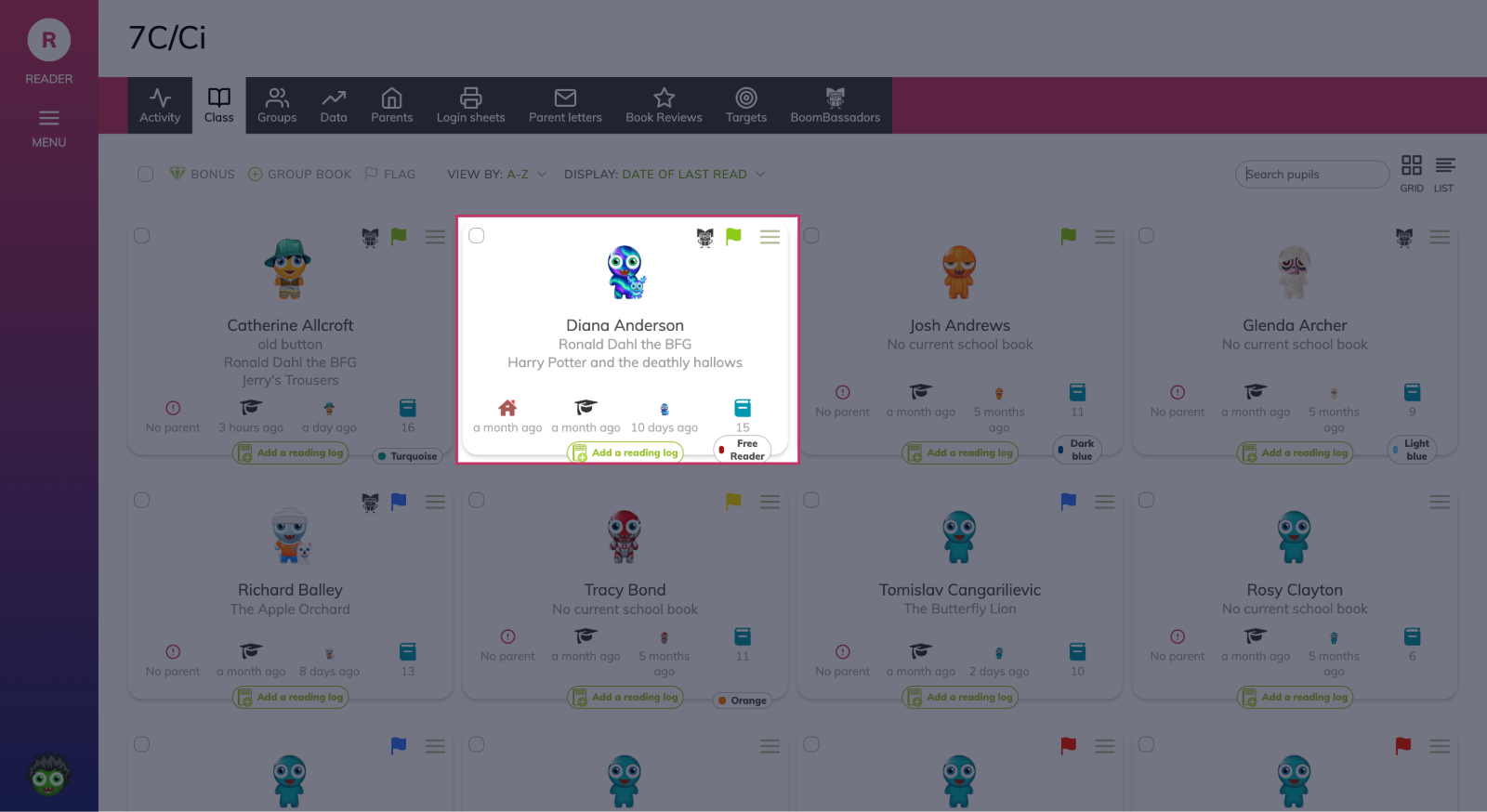
From your class screen, select the pupil you want to add a book for.
-
Click the **Add Book** button
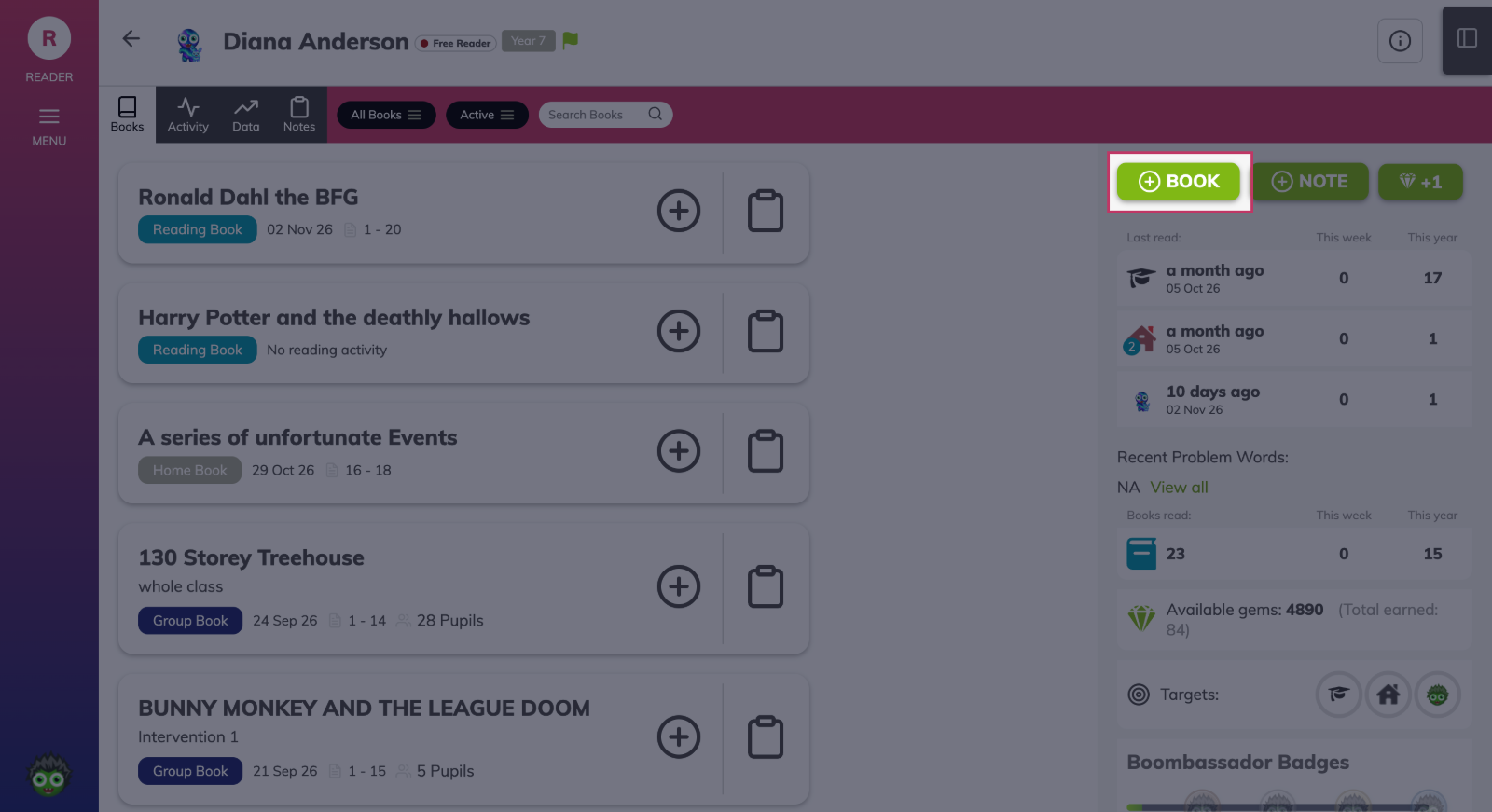
From the pupil's profile screen, click the Add Book button.
-
Find the book you wish to add.
From this screen you have several options. You can use the search tool to look for the book by title or author. You can browse the reading-scheme collections to find the book you need. You can also browse the recommended books section, which suggests titles for pupils based on what they have read recently.
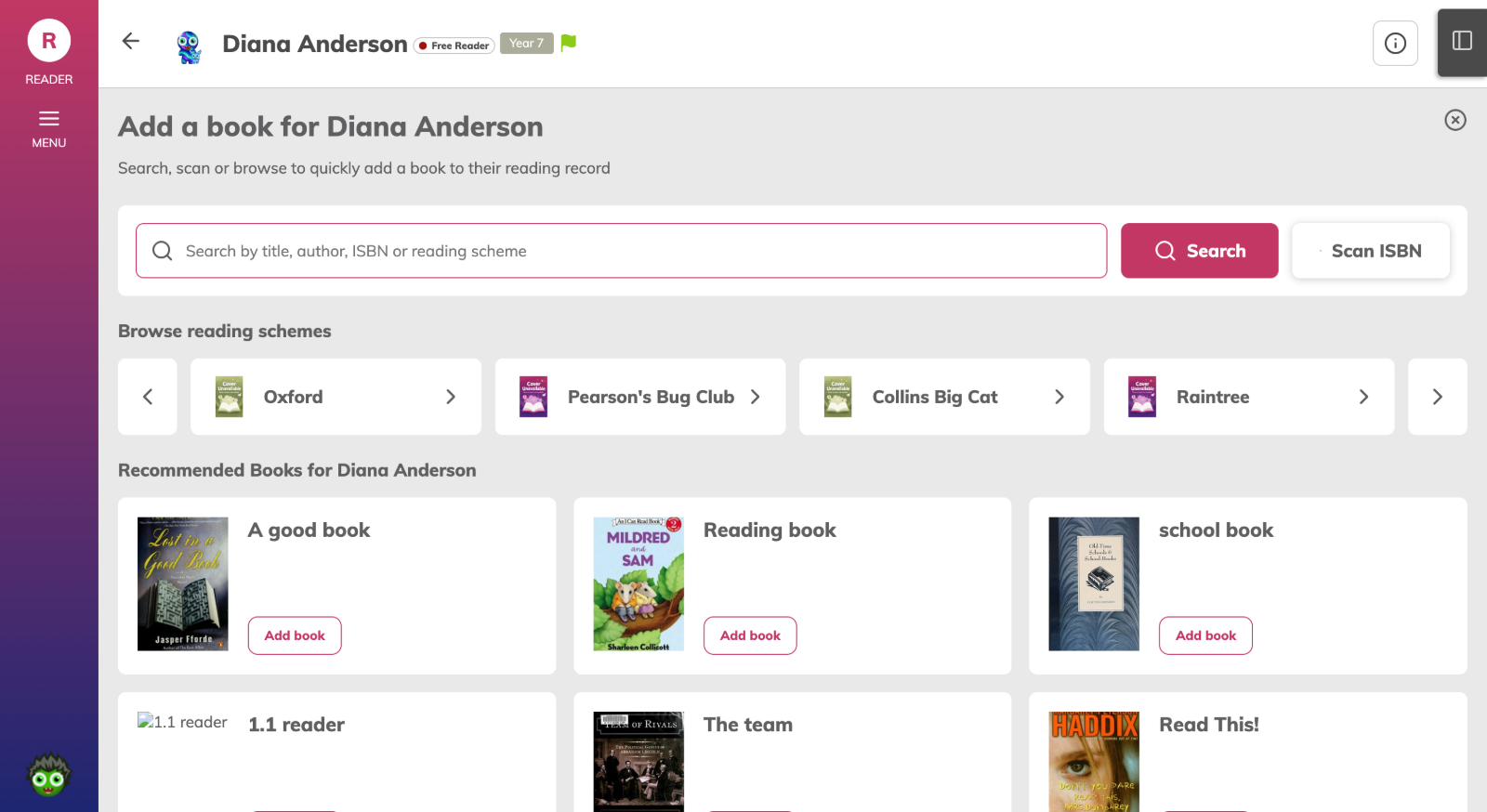
Searching for a book.
-
Using the search tool
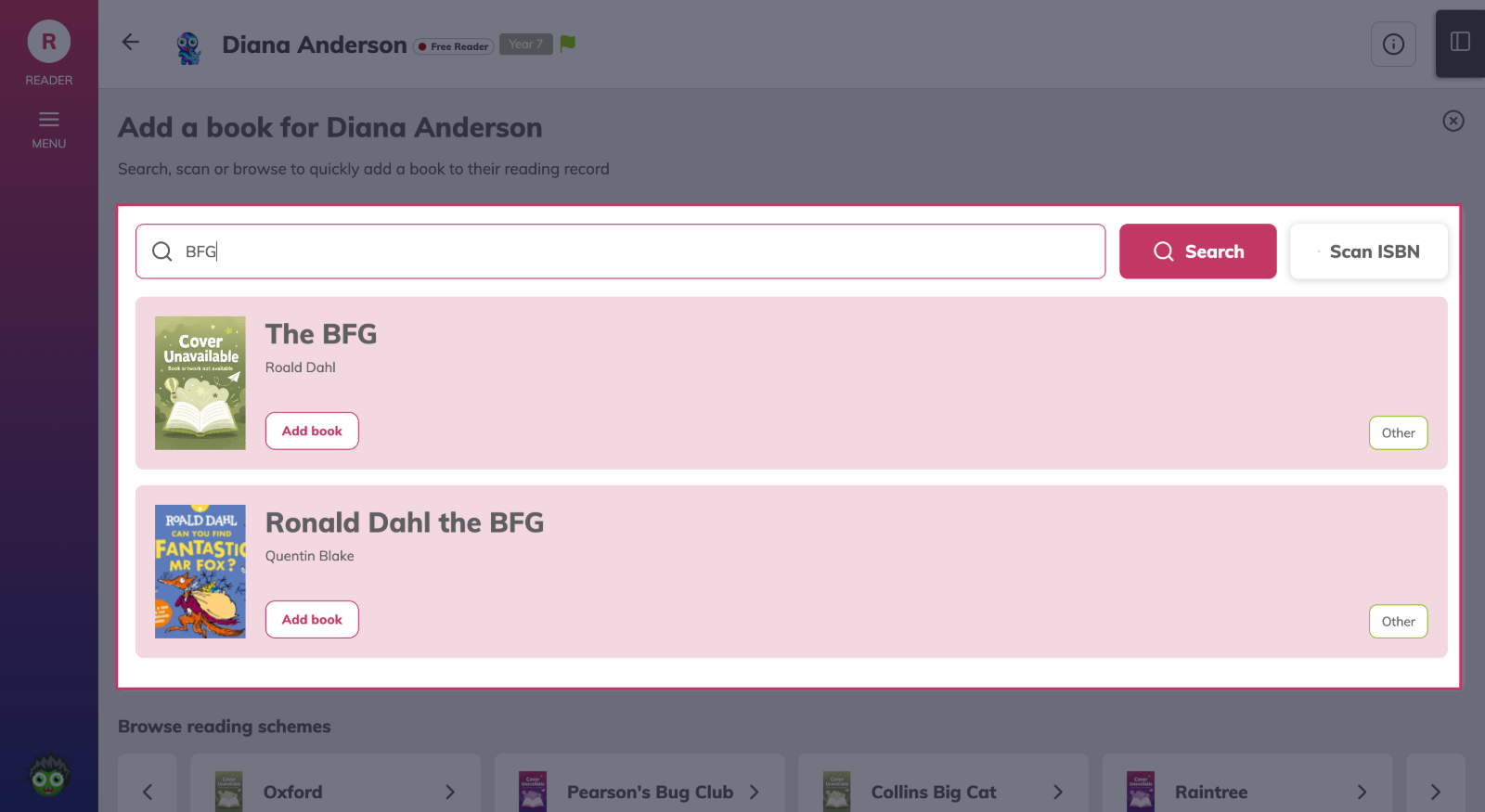
Click the search bar at the top of the screen and enter the book title or author.
-
Adding the book
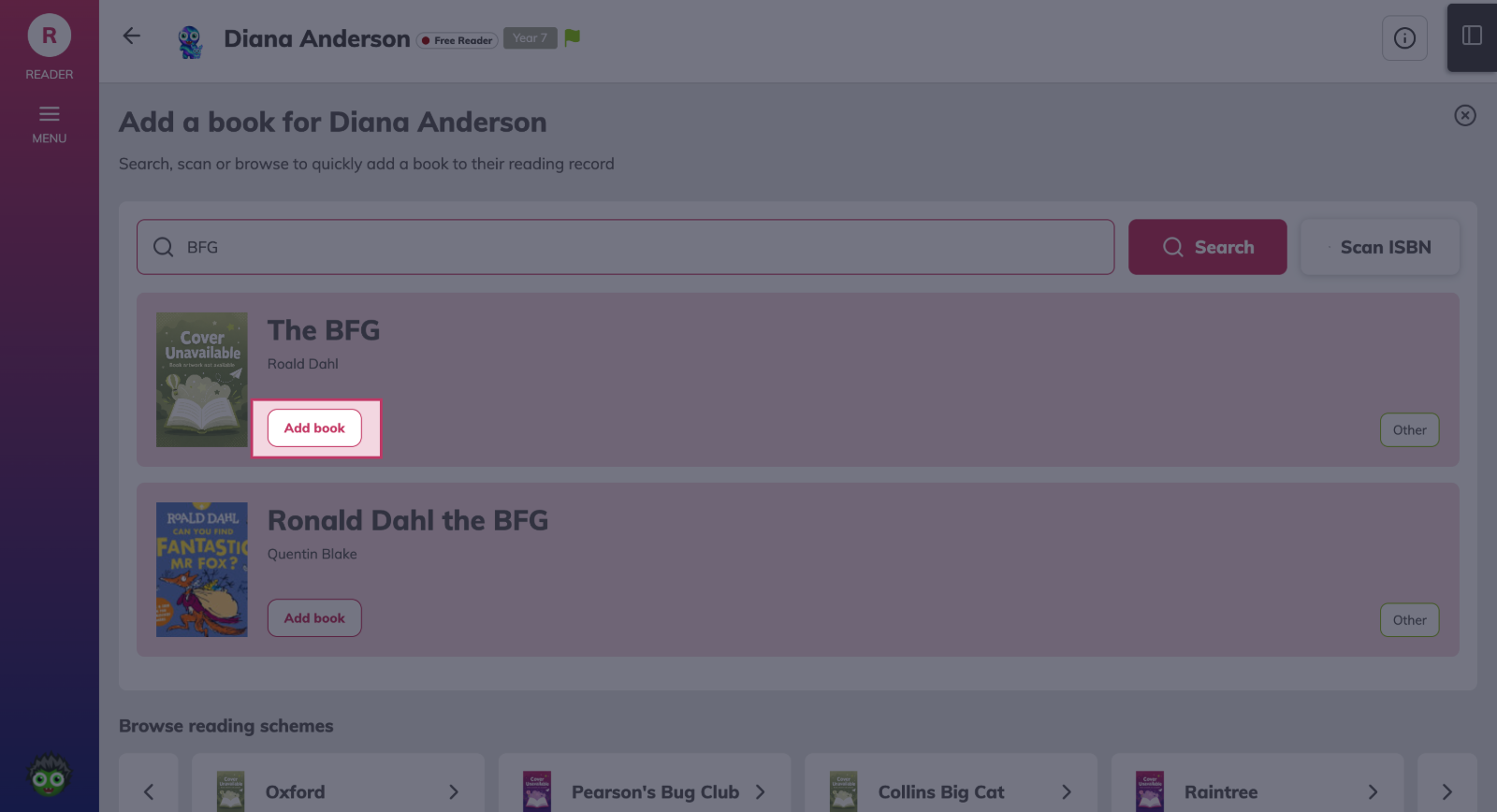
Once you are happy you have found the correct book, click the Add Book button on the book's card.
-
Adding a book that's not in the system
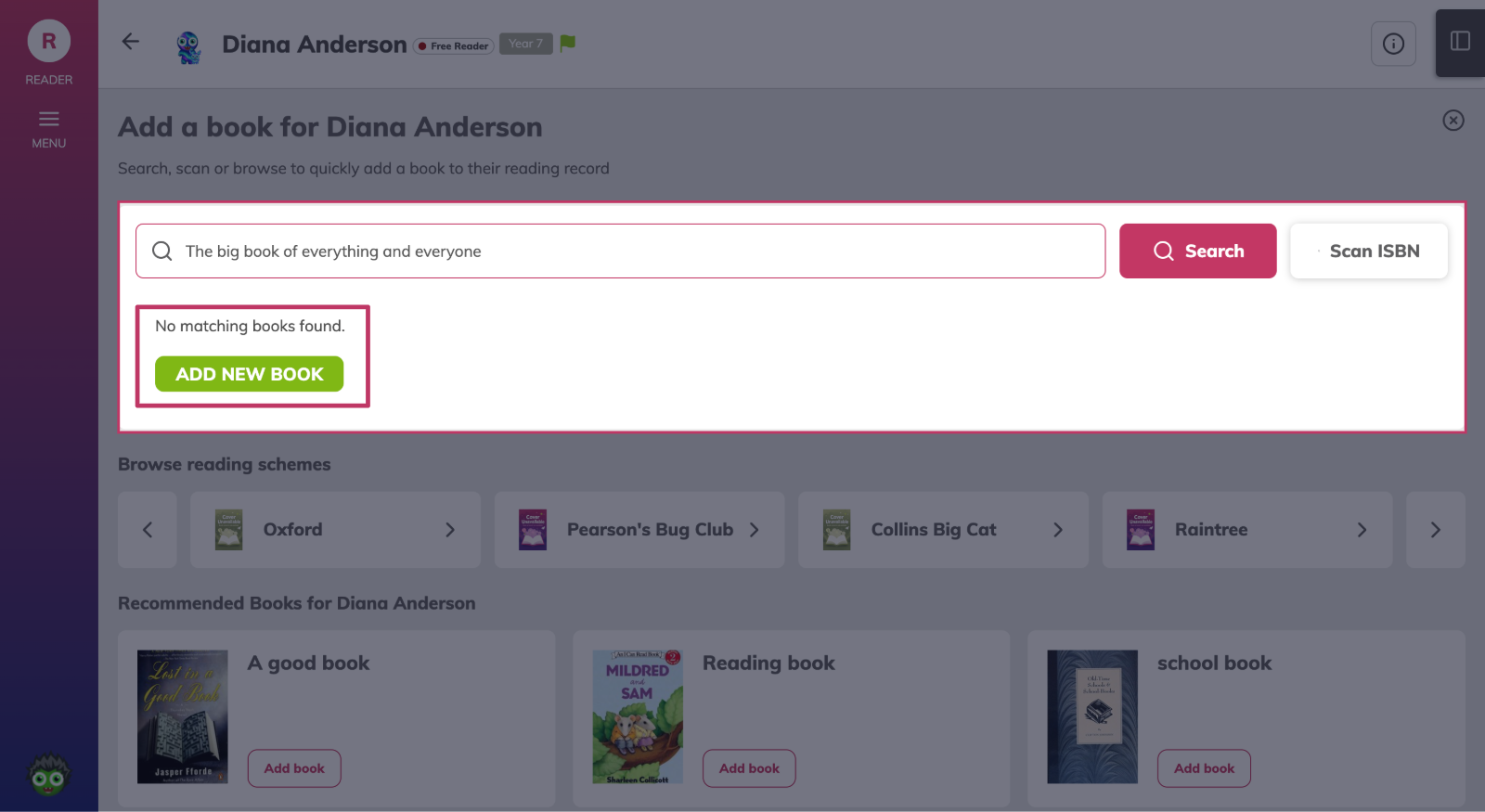
If you cannot find the book, check for spelling errors in the search bar. If the book is not in the system, a green Add New Book button will appear; you can add it to our database of books from there.
Something not working?
You don't have the reading scheme we use in school
We are adding reading schemes to the system as the platform develops. Please check back for updates to this feature.