
Switch between schools
Change the active school so you can open that school's School Hub and access its BoomReader account.
- 4 steps
- For teachers and staff
- Checked 9 October 2026
Follow the steps
Before you start: If your account has access to more than one school you can switch between them. Note the difference between school-management types: for Wonde schools pupil and staff data are managed in the school MIS and synchronised overnight — do not attempt to create, edit or remove MIS-managed pupils or staff in BoomReader. For manually managed schools authorised staff make changes in the School Hub.
-
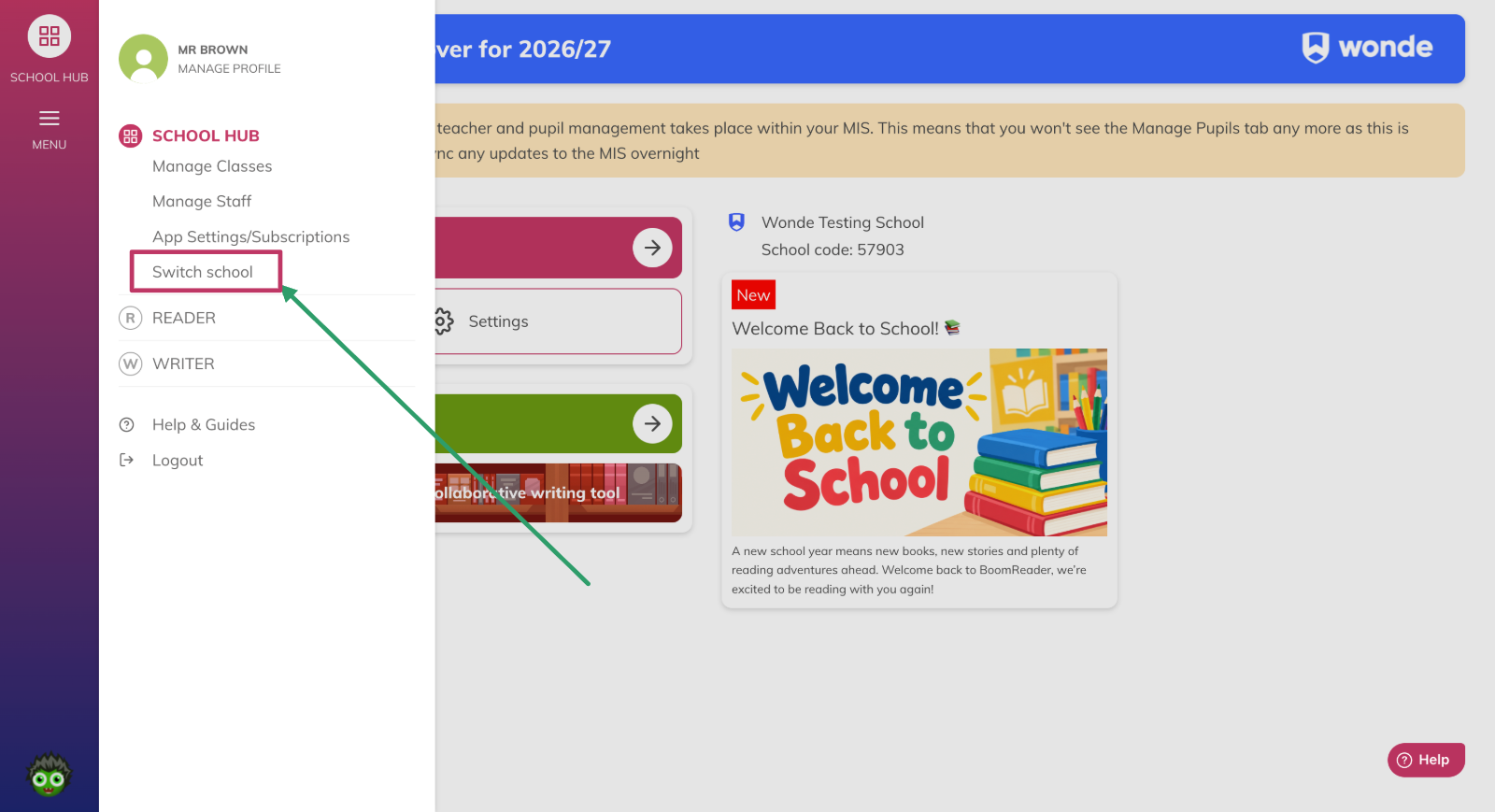
Step 1 — Open the School Hub
From any page in the Reader, click School Hub in the Reader menu.
-
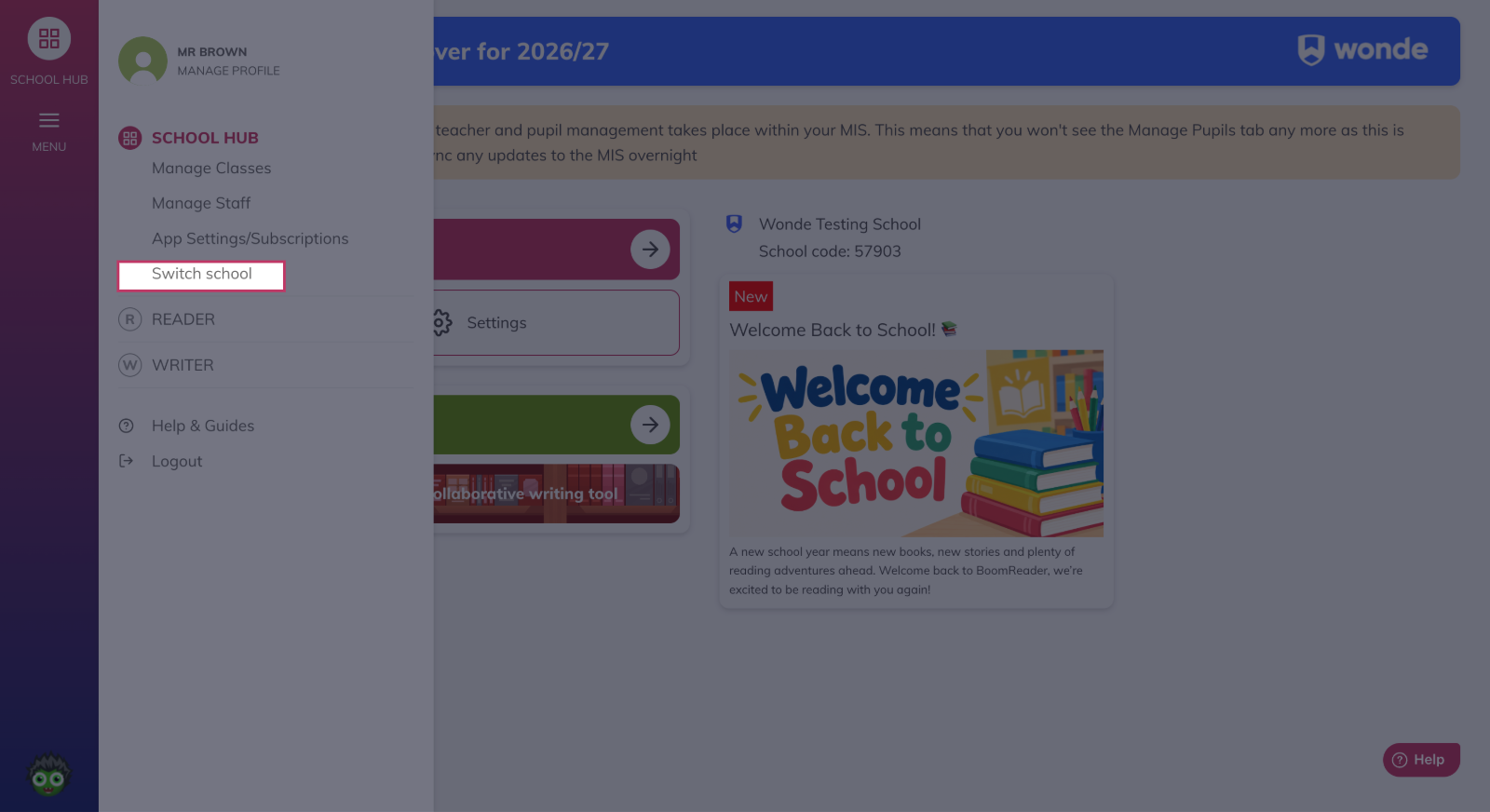
Step 2 — Choose to switch
In the School Hub interface click Switch school.
-
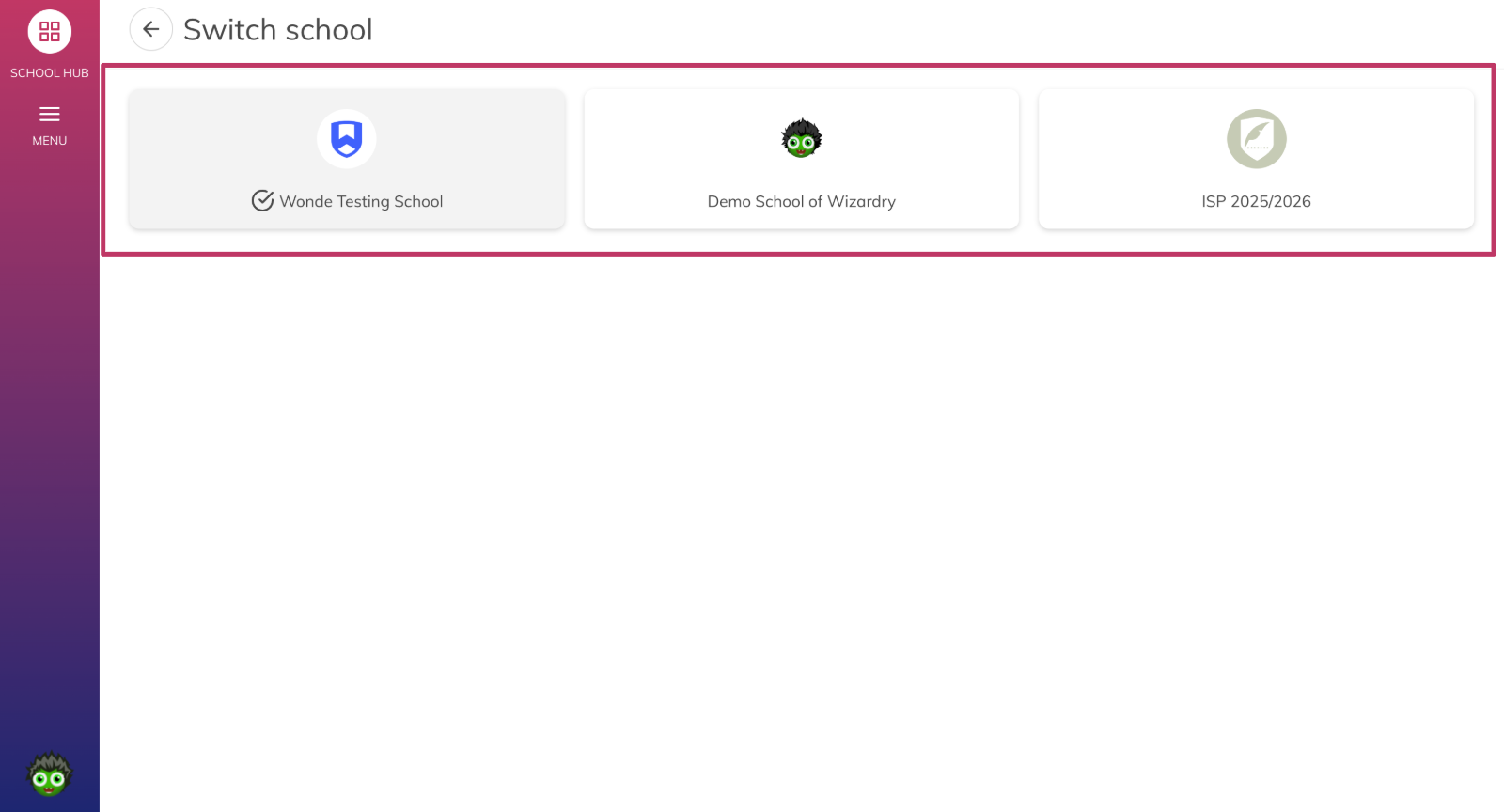
Step 3 — Select the school
From the list of schools presented, select the school you want to open.
-
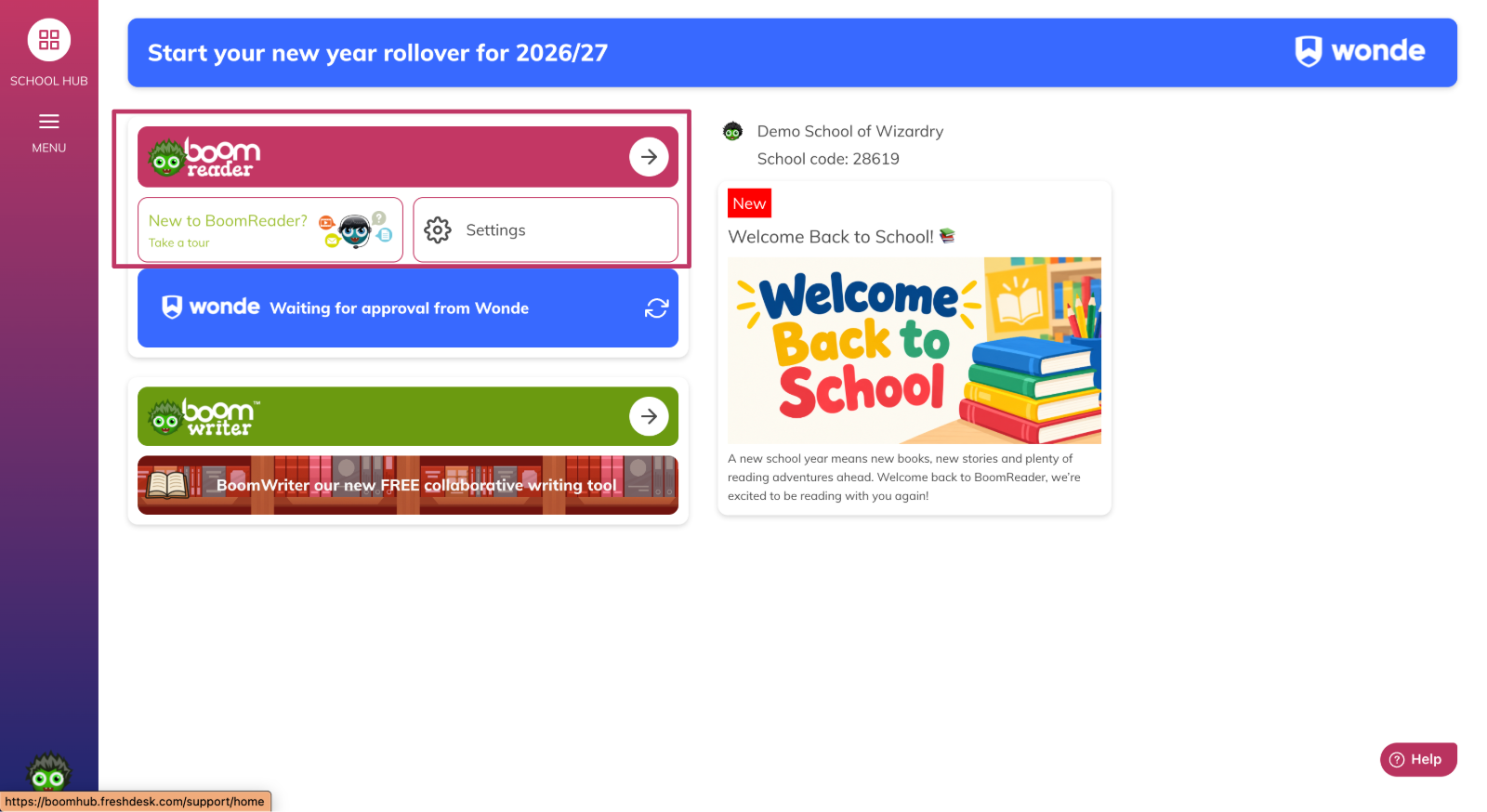
Step 4 — Open BoomReader for the selected school
Click the BoomReader application card in the selected school's School Hub, or use Reader in the menu to open the Reader for that school.
What happens next
You will be taken into the chosen school's School Hub and Reader, showing that school's classes, pupils and reading data. For Wonde schools remember that recent MIS changes (for example new pupils or staff) may not appear immediately because synchronisation usually happens overnight.
Something not working?
I don't see **Switch school** in the School Hub
You may not have access to multiple schools or your account lacks the required permission. Ask your school administrator to confirm your account's school assignments. Contact support to gain access to multiple schools.
I switched schools but I still see the same pupils or classes
If the school is a Wonde school, recent MIS changes may not be visible until the next overnight synchronisation. For manually managed schools check with your administrator that pupils and classes have been added in that school's School Hub.
I cannot open **BoomReader** after switching
Try refreshing the page and then click the BoomReader application card or Reader again. If the problem persists, contact your school administrator or Boom support.