Setting up BoomBassadors
This guide walks you through how to set up and promote BoomBassadors in your school.
- 6 steps
- For teachers and staff
- Checked 8 November 2026
Follow the steps
- Tip
BoomBassadors are reading ambassadors in our system. They have permission to log reading for their peers in BoomReader. Promote only trusted pupils.
- Tip
Download our support materials for BoomBassadors from: https://www.boomreader.co.uk/boombassadors
-
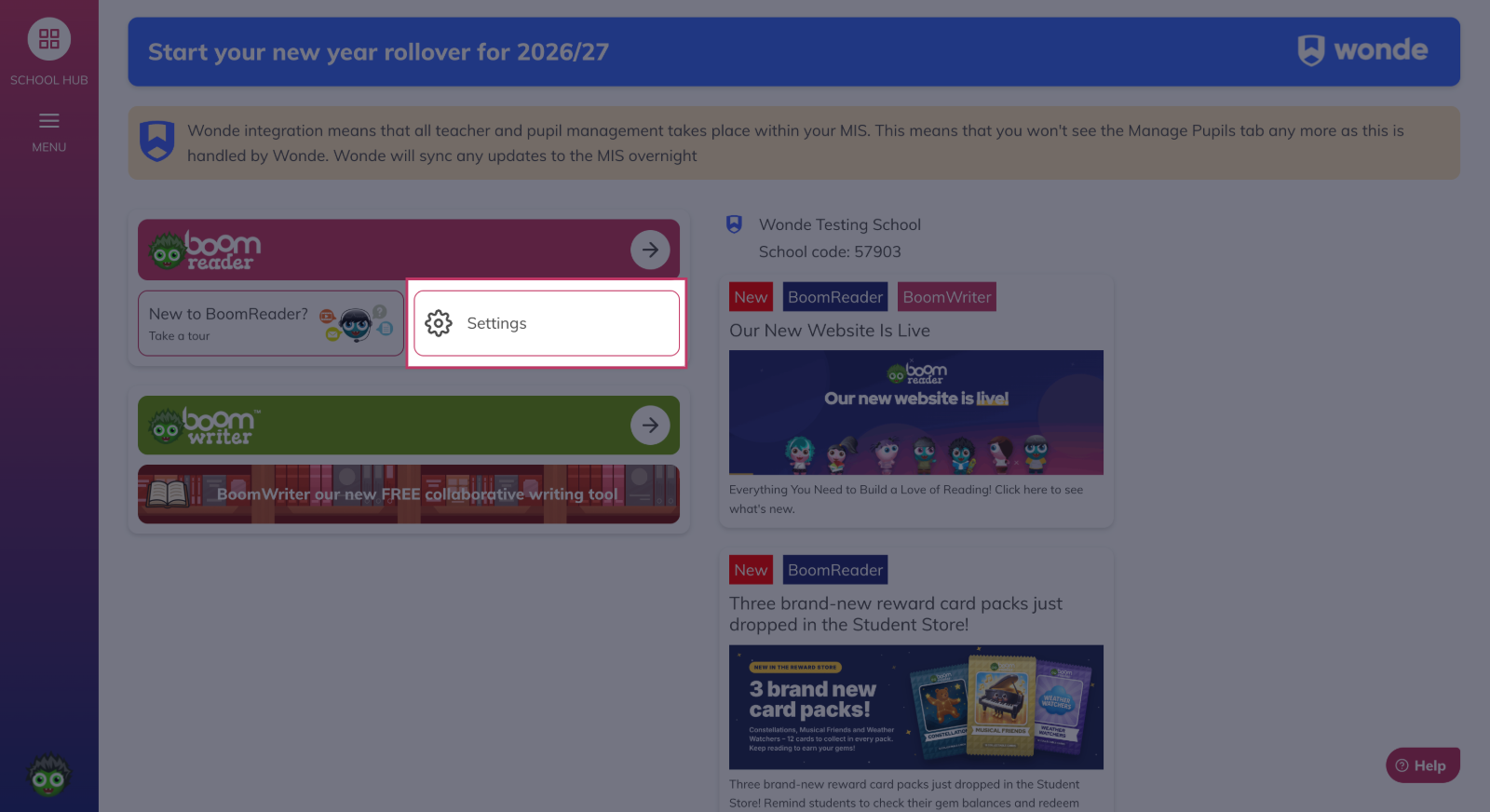
From the **School Hub** menu, open the **Reader** settings screen.
BoomReader school admins can promote BoomBassadors in their schools. If you are not an admin, ask your school administrators to promote the pupils you would like.
-
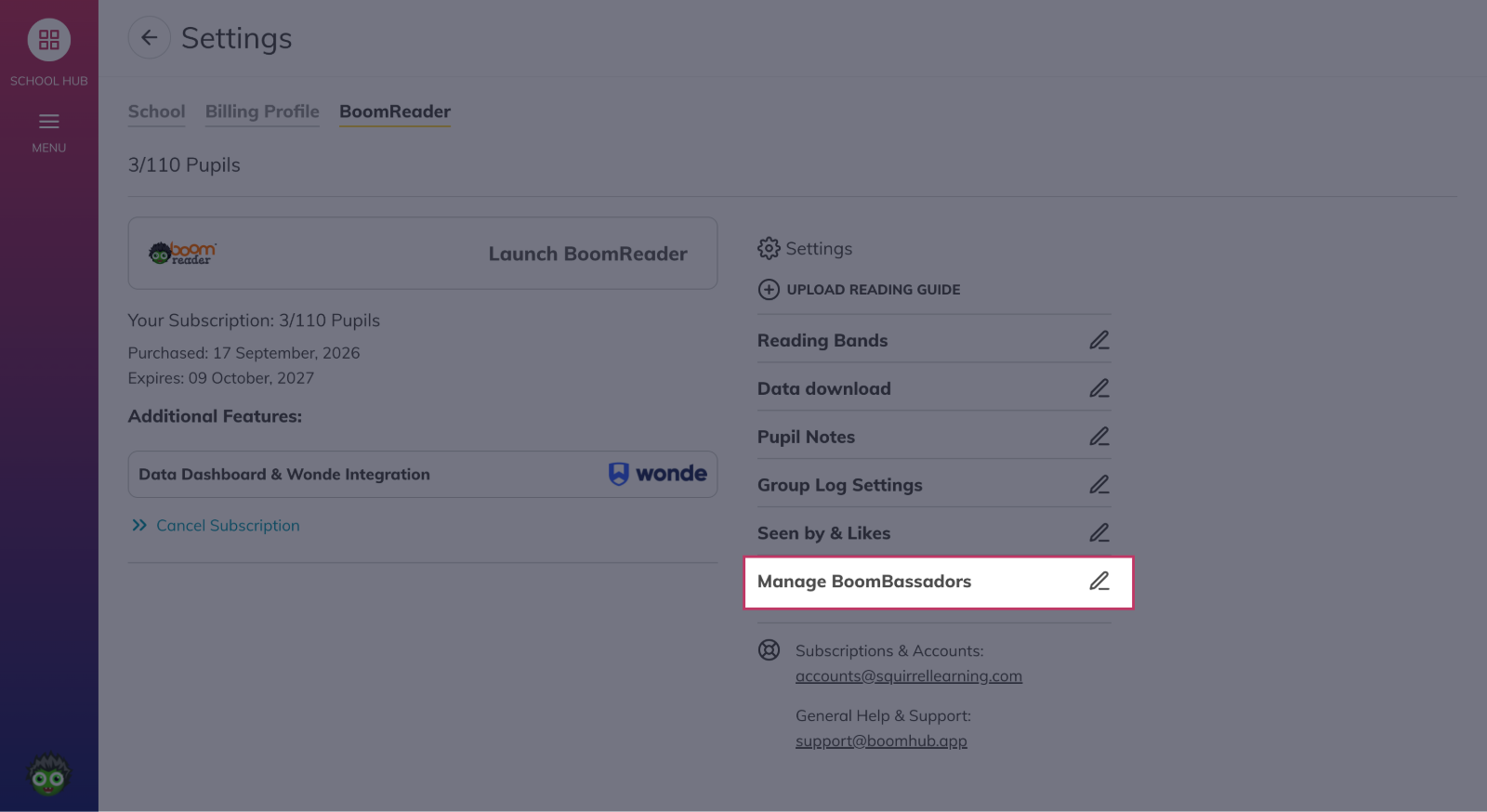
Open the **BoomBassadors** settings.
Open the BoomBassadors settings screen from the settings dashboard.
-
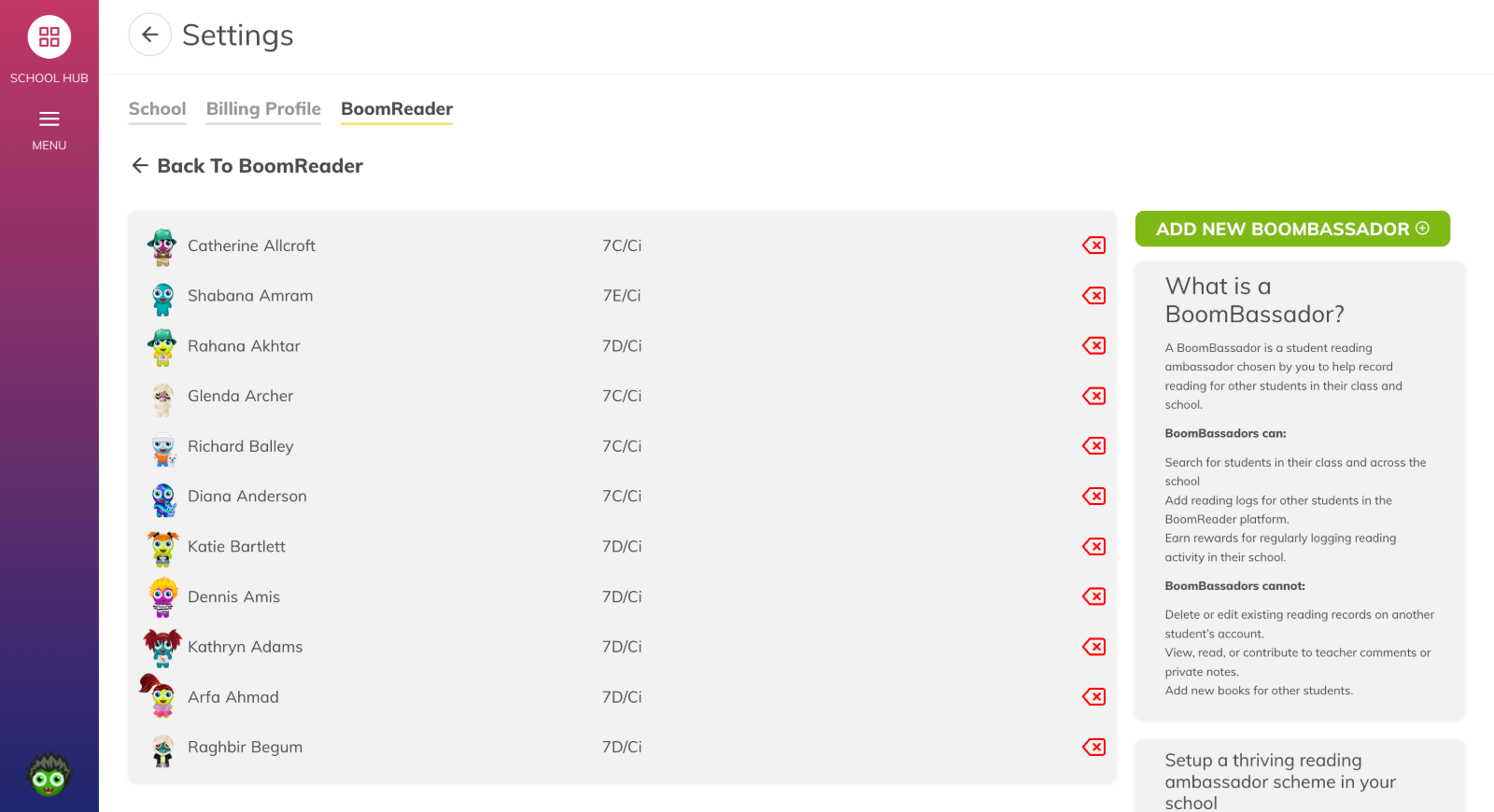
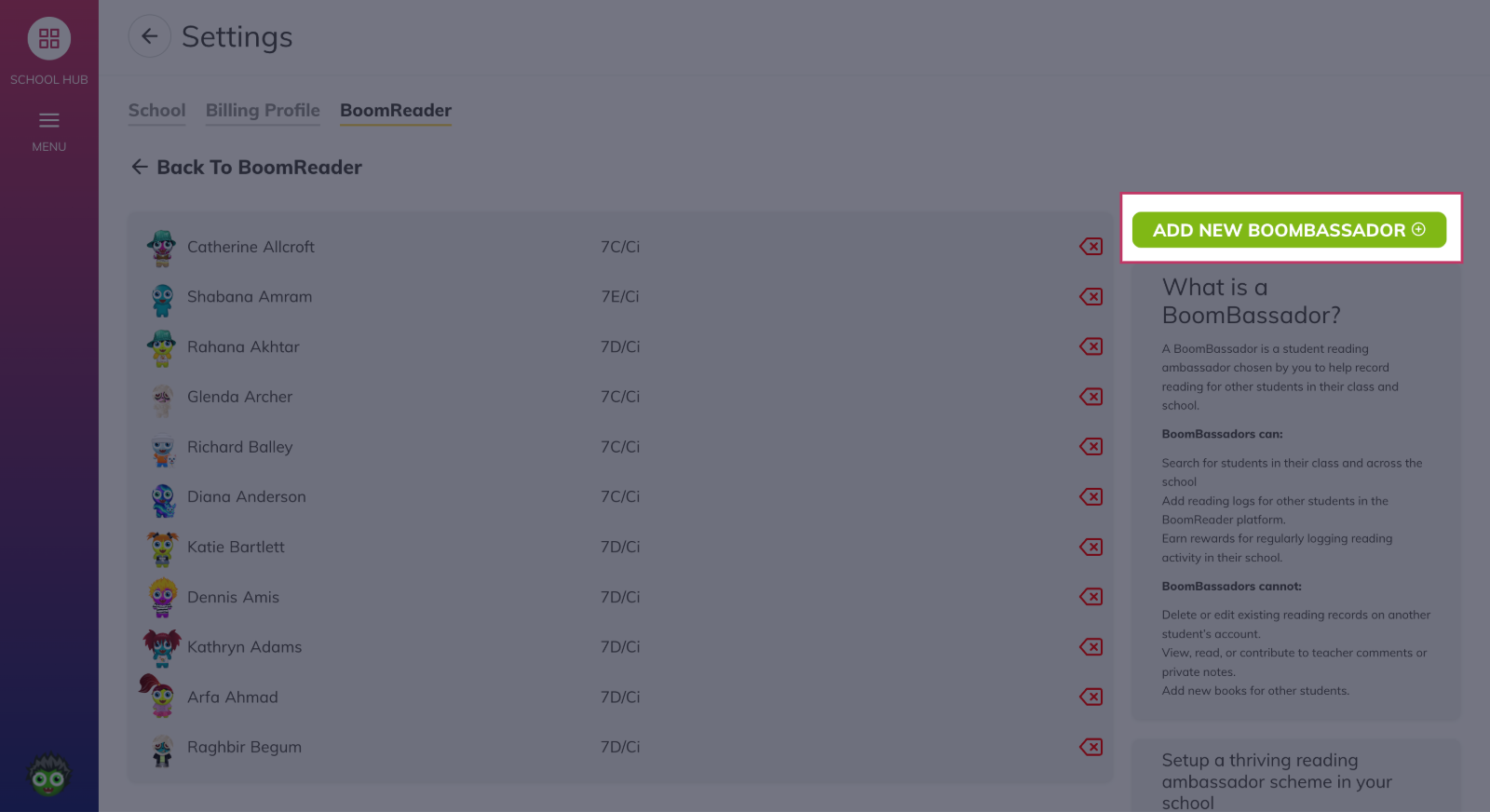
Manage your BoomBassadors
From this screen, you can see a list of existing BoomBassadors if you have any. You can remove a pupil's BoomBassador role by clicking the red back arrow. This does not delete the pupil; it only removes their BoomBassador role.
-
Add a new BoomBassador
To add a new BoomBassador, click the green button titled Add New BoomBassador.
-
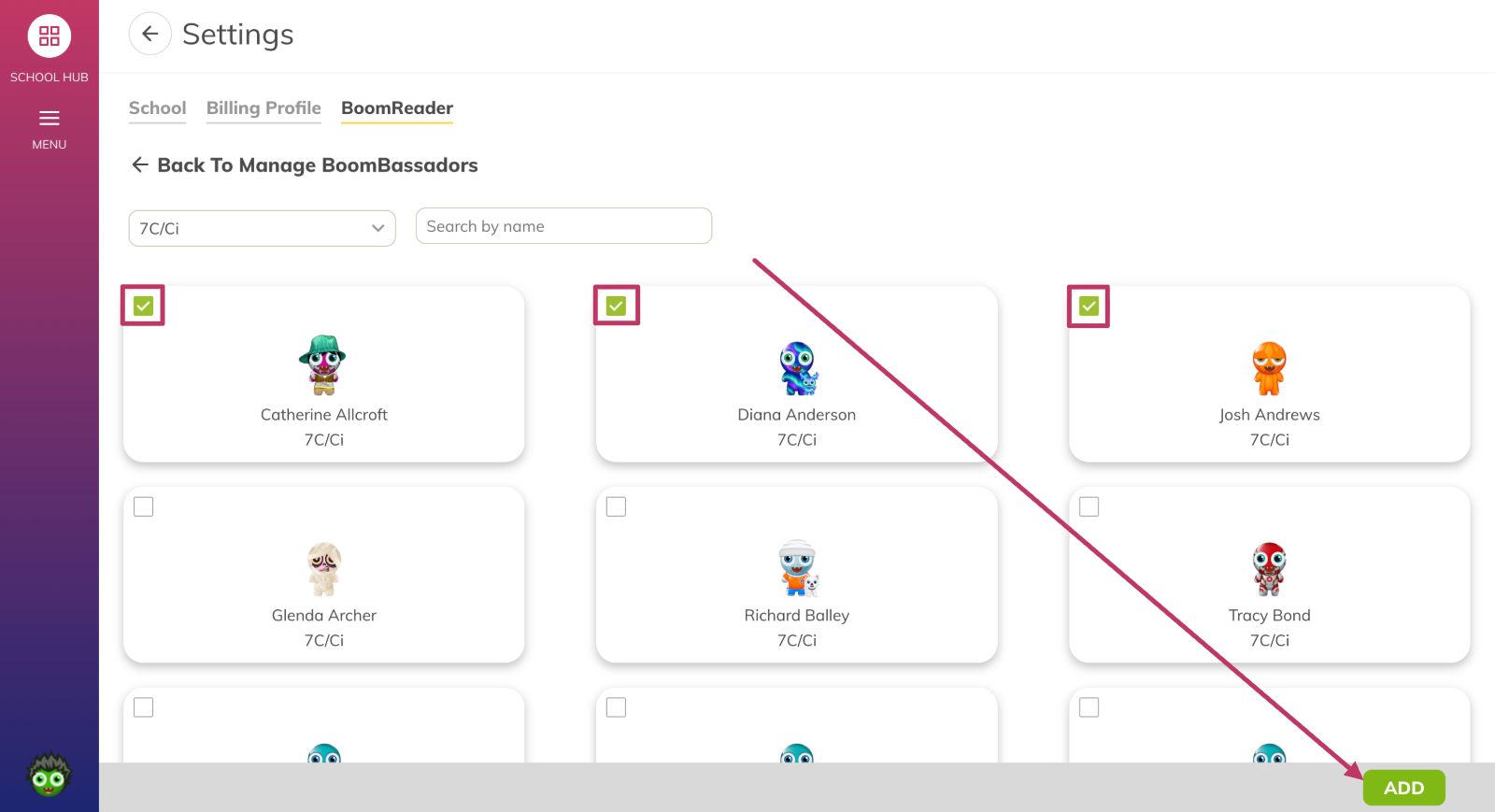
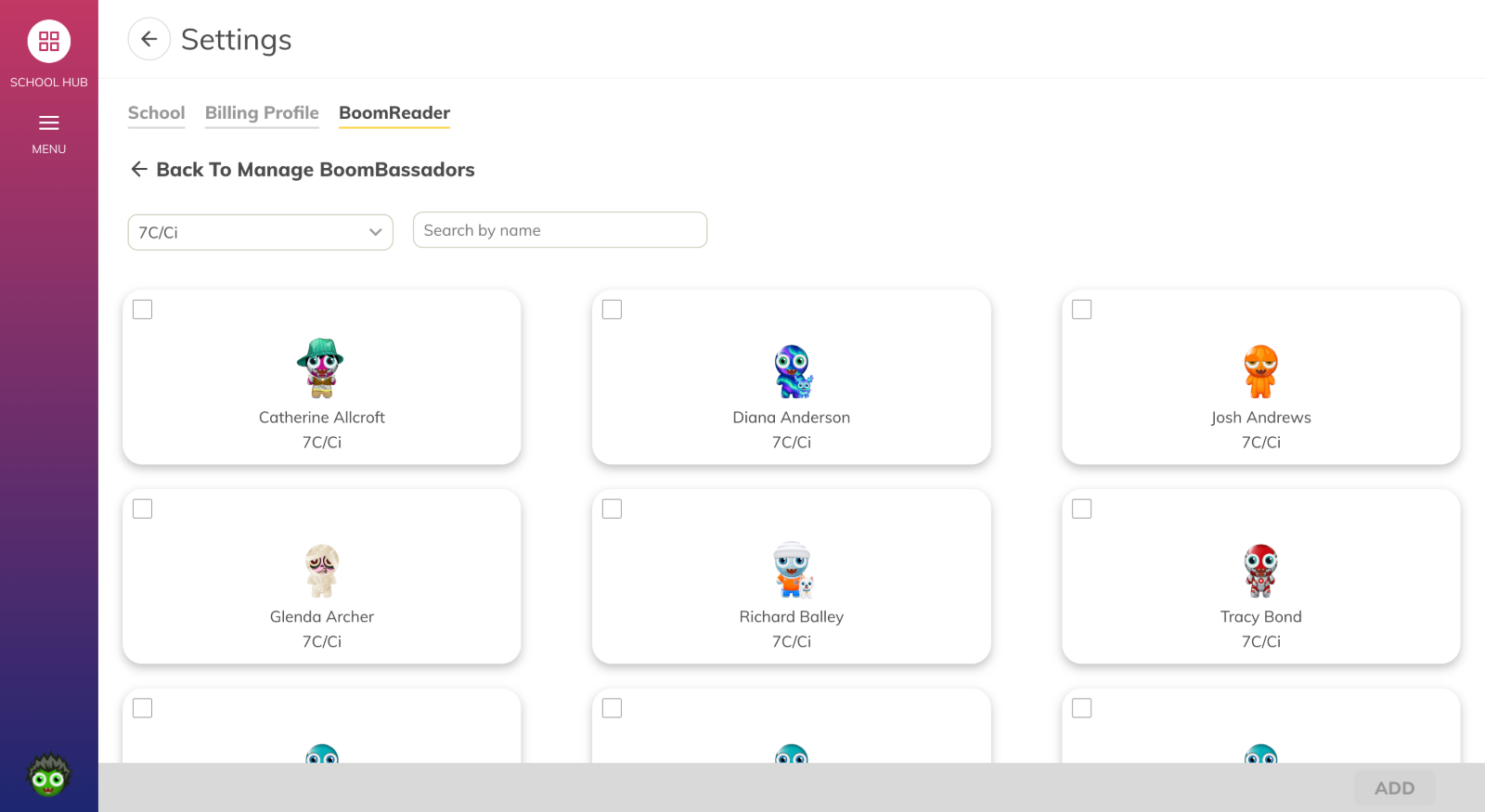
Search for a pupil.
Find pupils by searching their names in the name search bar. You can also search for a class using the class drop-down. Select all the pupils you wish to make BoomBassadors by ticking the boxes in their profile window.
-
Add a BoomBassador
Once you have selected the pupils, click the Add button at the bottom of the screen.