
Selecting a class in BoomReader
Outcome: Open any assigned class or another school class so you can view its reading activity and pupils.
- 4 steps
- For teachers and staff
- Checked 9 October 2026
Follow the steps
Before you start: Note for Wonde schools: pupils and classes are managed in the school MIS and synchronise to BoomReader (normally overnight). The School Hub will not show manual pupil-management controls. Manual-management schools add and edit classes in the School Hub. Selecting a class itself uses the same controls in both school types.
-
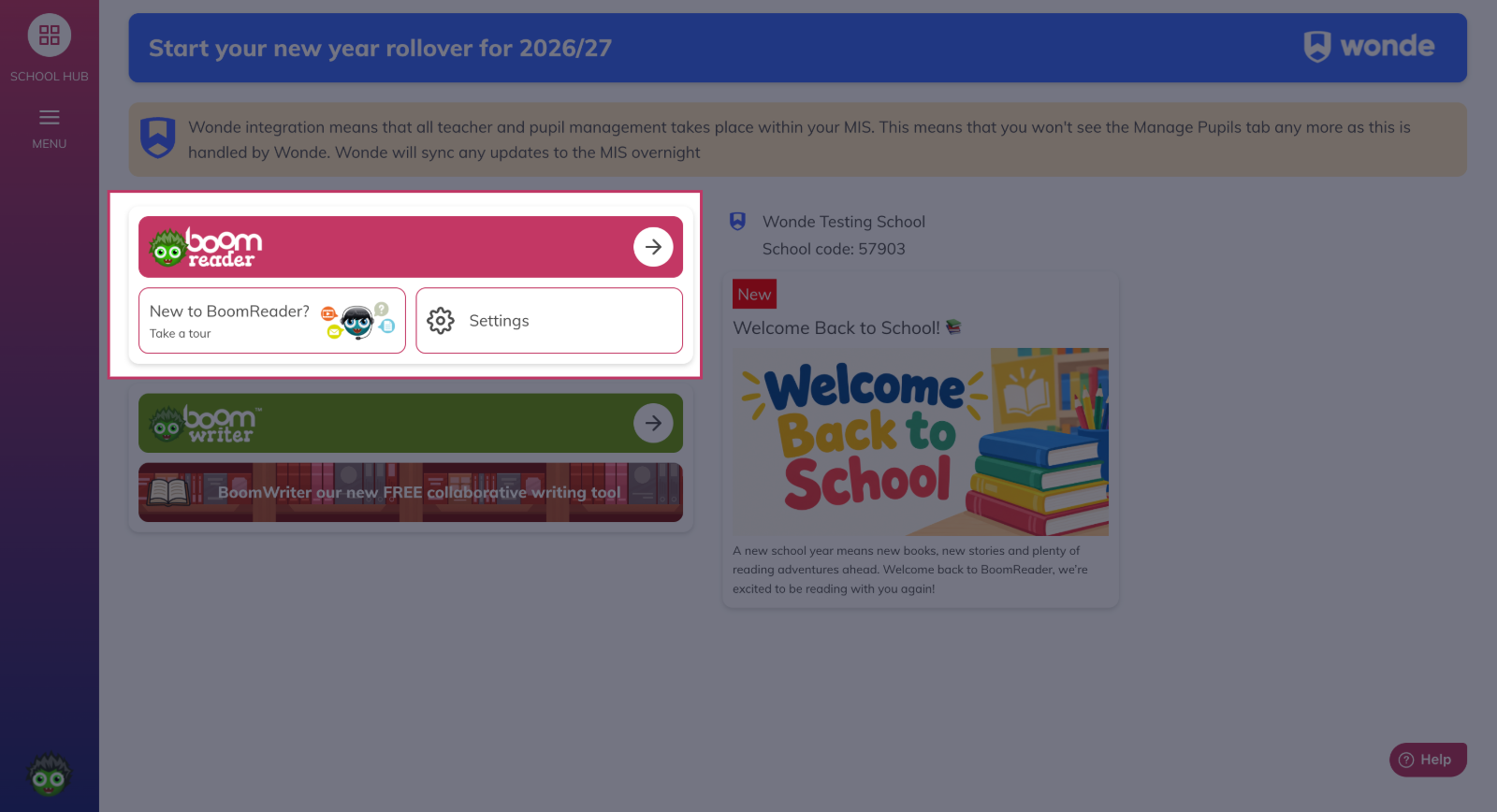
Step 1 — Open Reader
- From the School Hub, open the Reader application.
-
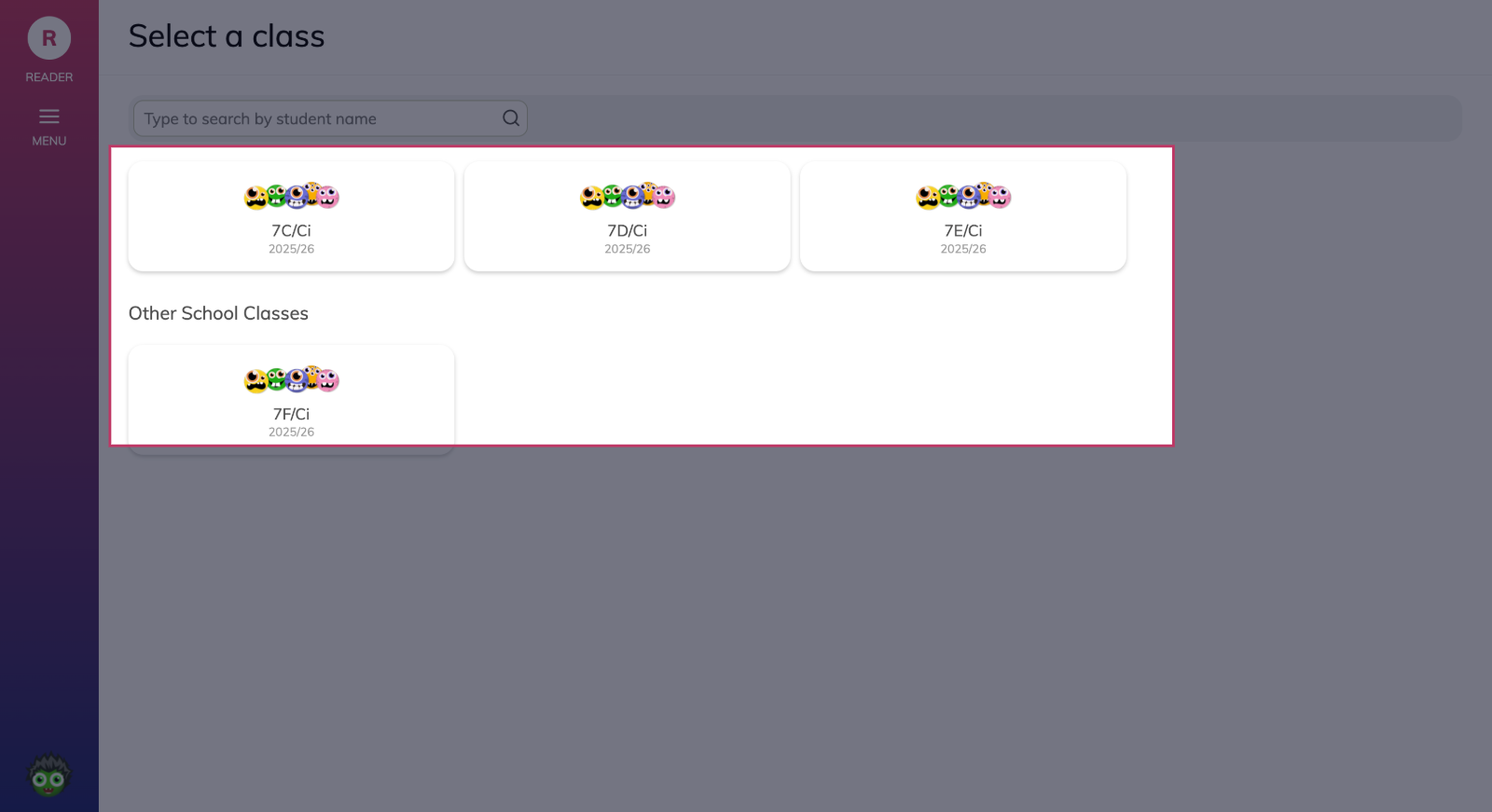
Step 2 — Use Class cards
- On the class-selection area, click the Class cards entry for the class you want (for example, Example Class) to open that class.
- Tip
If you regularly work with the class, its card will appear in your list of assigned classes.
-
Step 3 — Search by pupil name
- If you cannot find the class, use Search by pupil name: type a pupil name (for example, Example Pupil) and select the matching class from the results.
- Tip
Try a partial name if the full name returns no results.
-
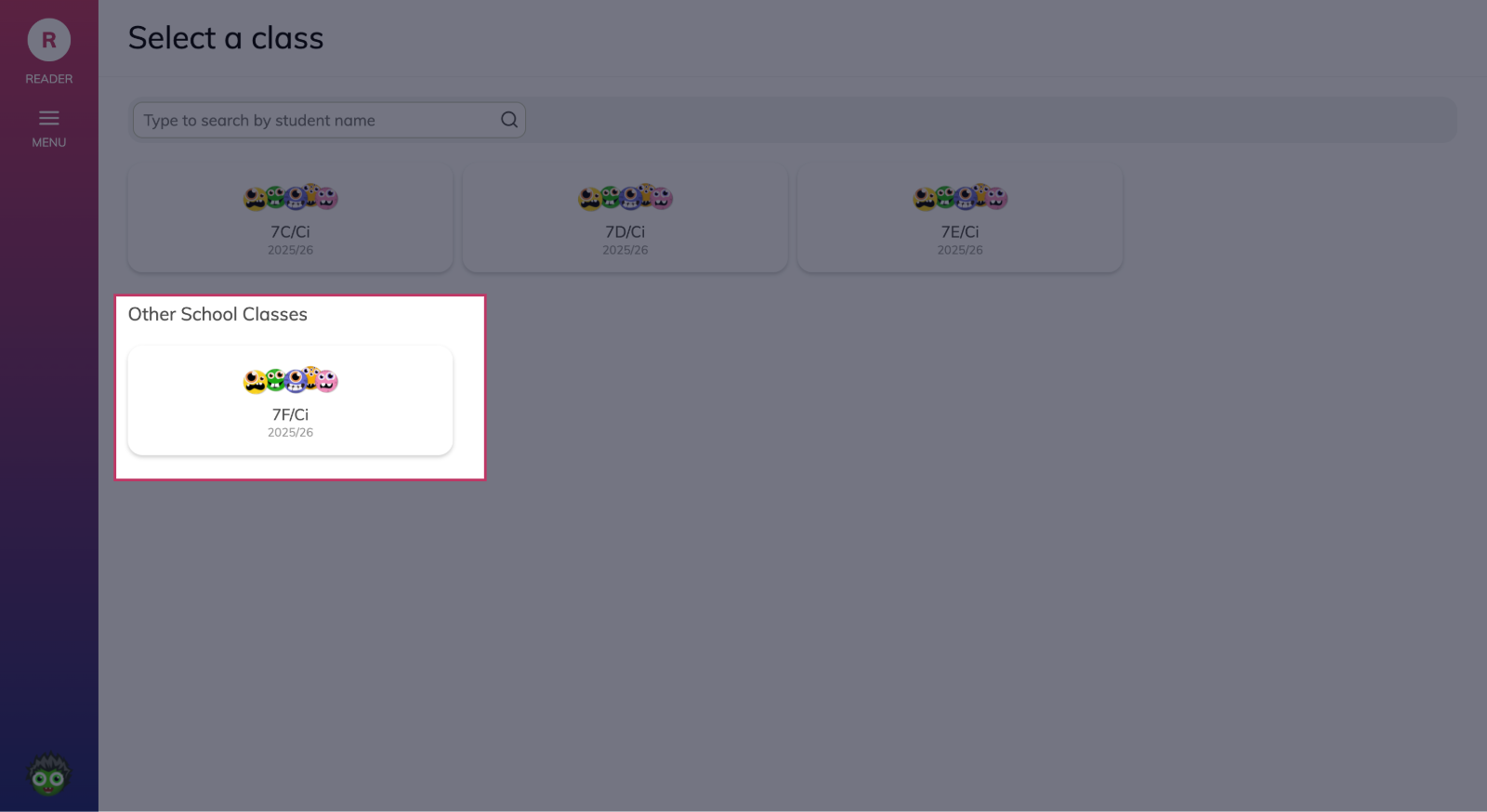
Step 4 — Open another school class
- To view a class you are not assigned to, open Other School Classes and choose the class you need.
What happens next
The selected class opens and shows the class view with tabs such as Activity, Class and Groups, where you can review recent reading events and pupils' current books.
Something not working?
I cannot find a class in the list.
Check you are in the correct school and that you have permission to view that class. For Wonde schools, confirm the class exists in your MIS and allow overnight synchronisation; for manual schools, check the School Hub class list or ask an administrator to confirm.
Search by pupil name returns no results.
Check the spelling or try a partial name. If the pupil is newly added in your MIS, allow the next synchronisation window (Wonde schools).
I do not see the Other School Classes option.
You may not have permission to view other classes. Ask a school administrator to check your account permissions.
Class data looks out of date.
For Wonde schools, changes made in the MIS normally synchronise overnight and will not appear immediately. For manual schools, ask the staff member who manages the School Hub to confirm recent edits.