
Logging reading for a pupil
How to logging reading for a pupil.
- 4 steps
- For teachers and staff
- Checked 8 November 2026
These steps work the same for every school, whether you use an MIS sync such as Wonde or manage classes yourself.
Follow the steps
Before you start: The pupil must have an active book. If no active book exists, the interface offers Add Book or Cancel.
-
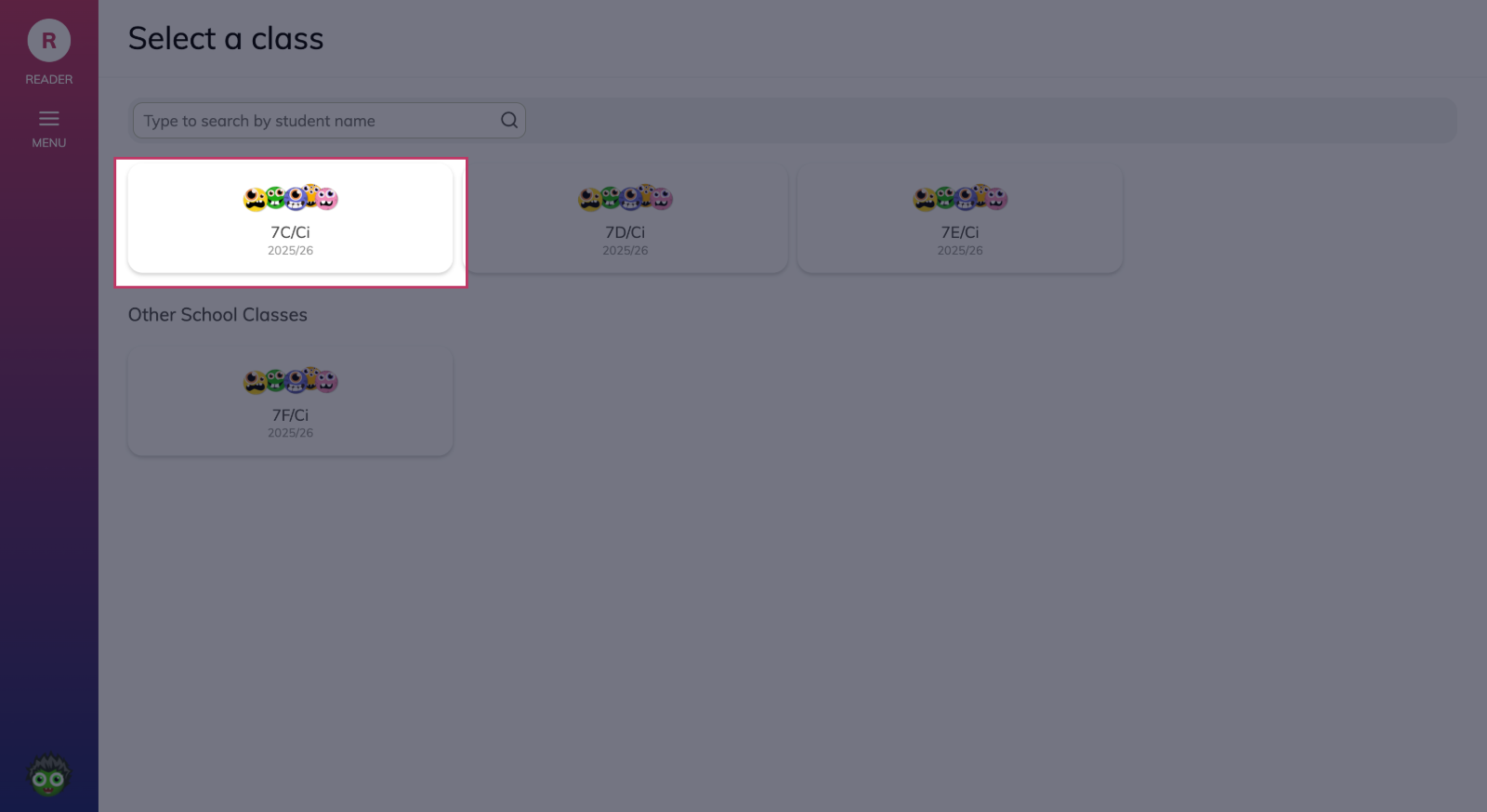
Open your class
Go to Reader and choose your class card. To find a different class, use Other School Classes.
-
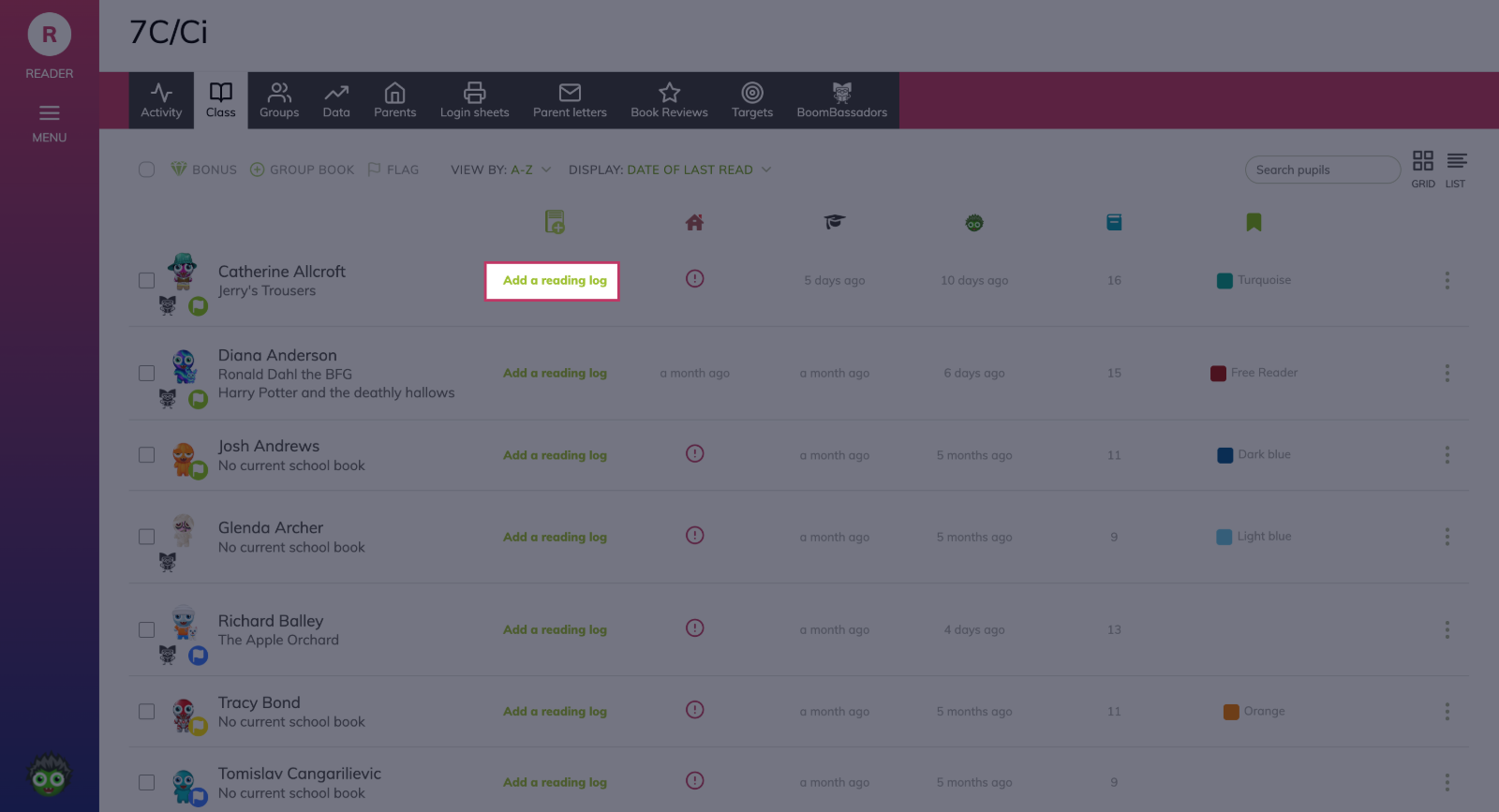
Choose the pupil and add a reading log
Choose the pupil, then Add a reading log.
-
Fill in the reading log
Fill in:
- Date
- Start page
- End page
- Comments
- Problem words or sounds
- Book completed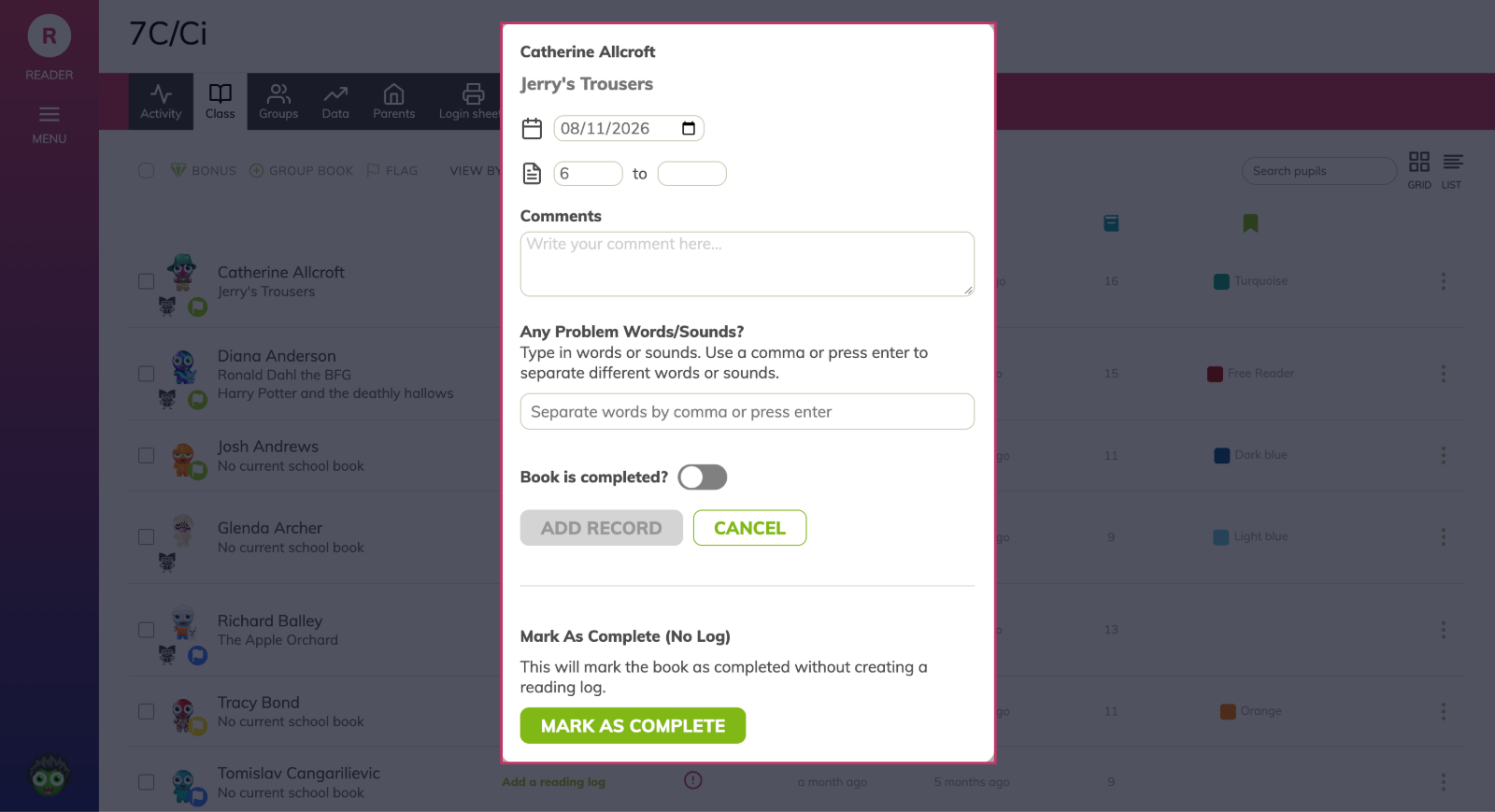
-
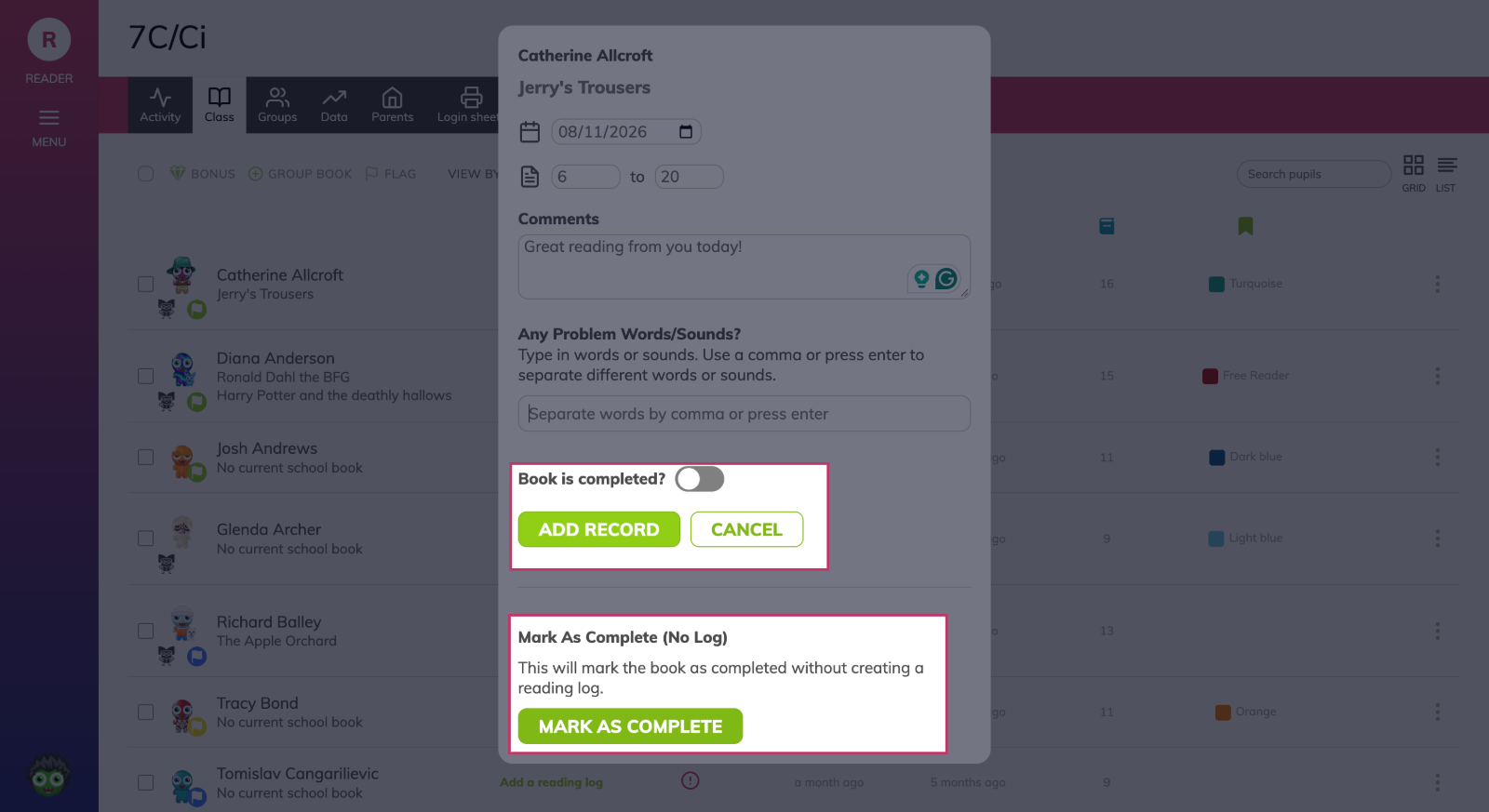
Save the log
Choose Add Record. To mark the book finished without logging reading, use Mark As Complete.
Something not working?
I can't add a reading log
The pupil must have an active book. If no active book exists, the interface offers Add Book or Cancel.