
How Wonde keeps your classes up to date
Understand how pupil, staff and class changes made in your school's MIS are synchronised into BoomReader via Wonde.
- 6 steps
- For teachers and staff
- Checked 9 October 2026
Follow the steps
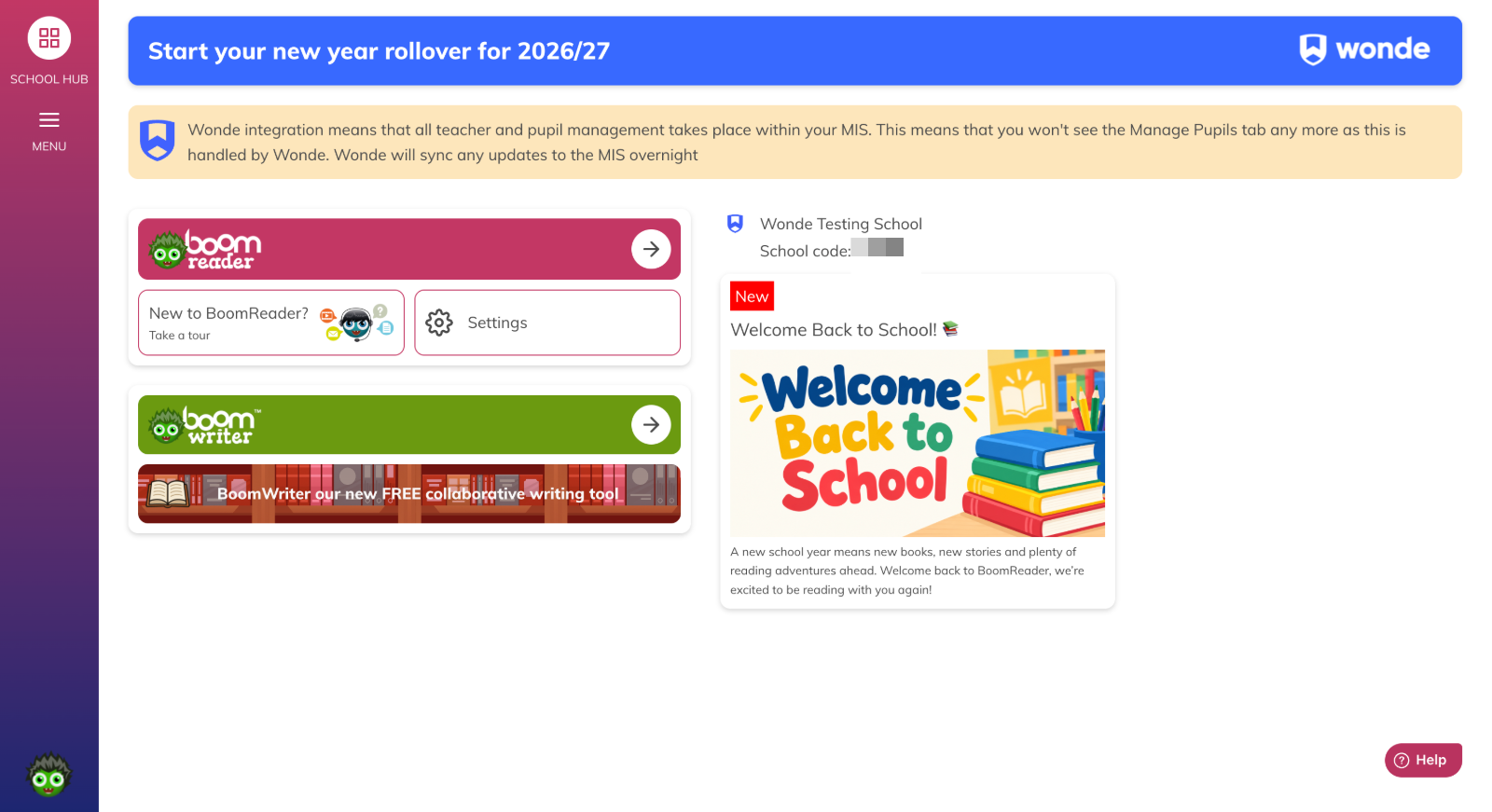
Before you start: This guide is for Wonde (MIS-managed) schools. Unlike manually managed schools, you must not create, edit or remove MIS-managed pupils or staff in the School Hub or Reader. The School Hub does not show manual pupil-management controls because changes are made in your MIS and synchronised to BoomReader.
-
1. Open the School Hub
Sign in to Boom and open the School Hub.
-
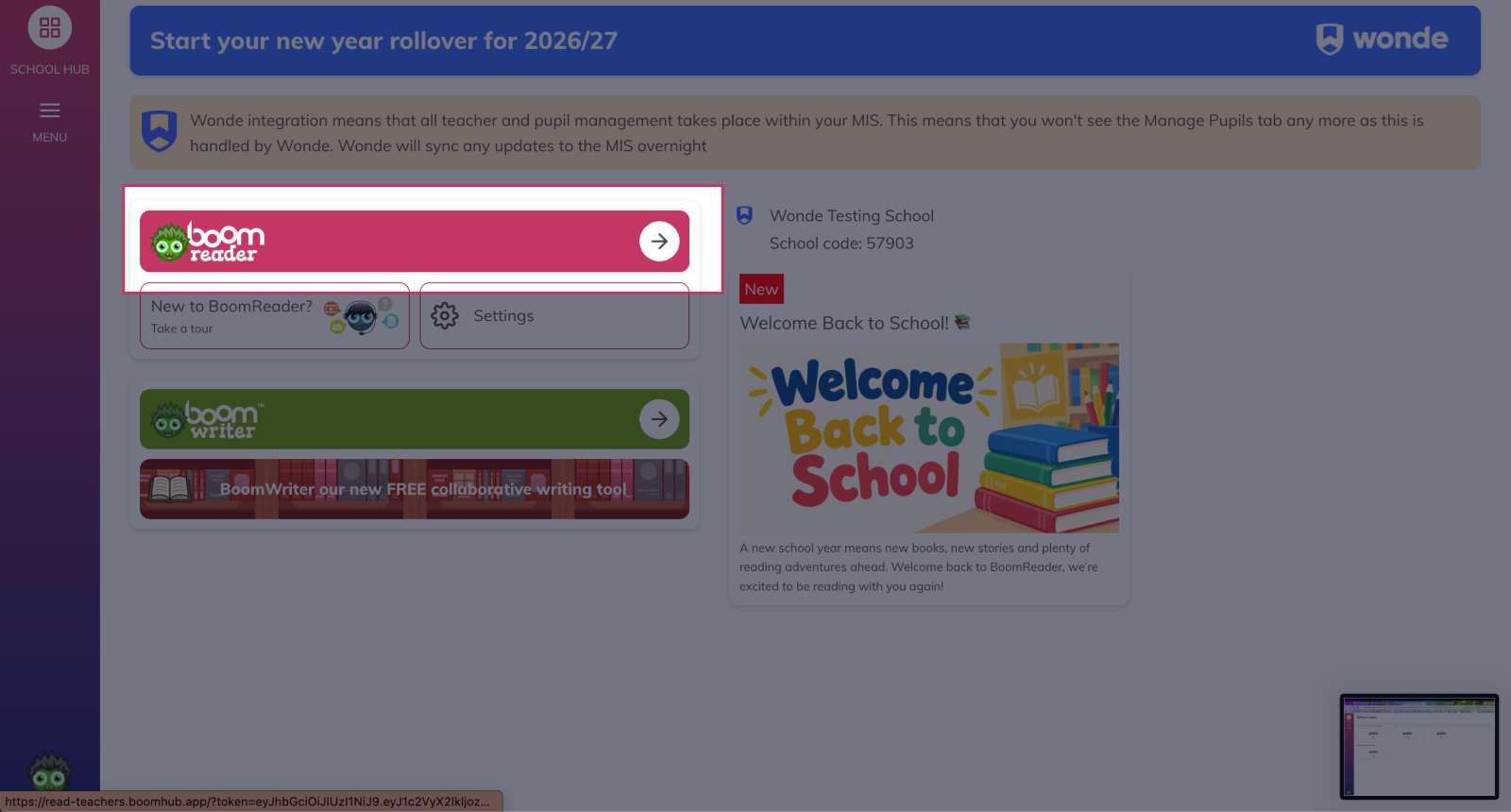
2. Open BoomReader
Click the BoomReader application card to open the staff-facing Reader.
-
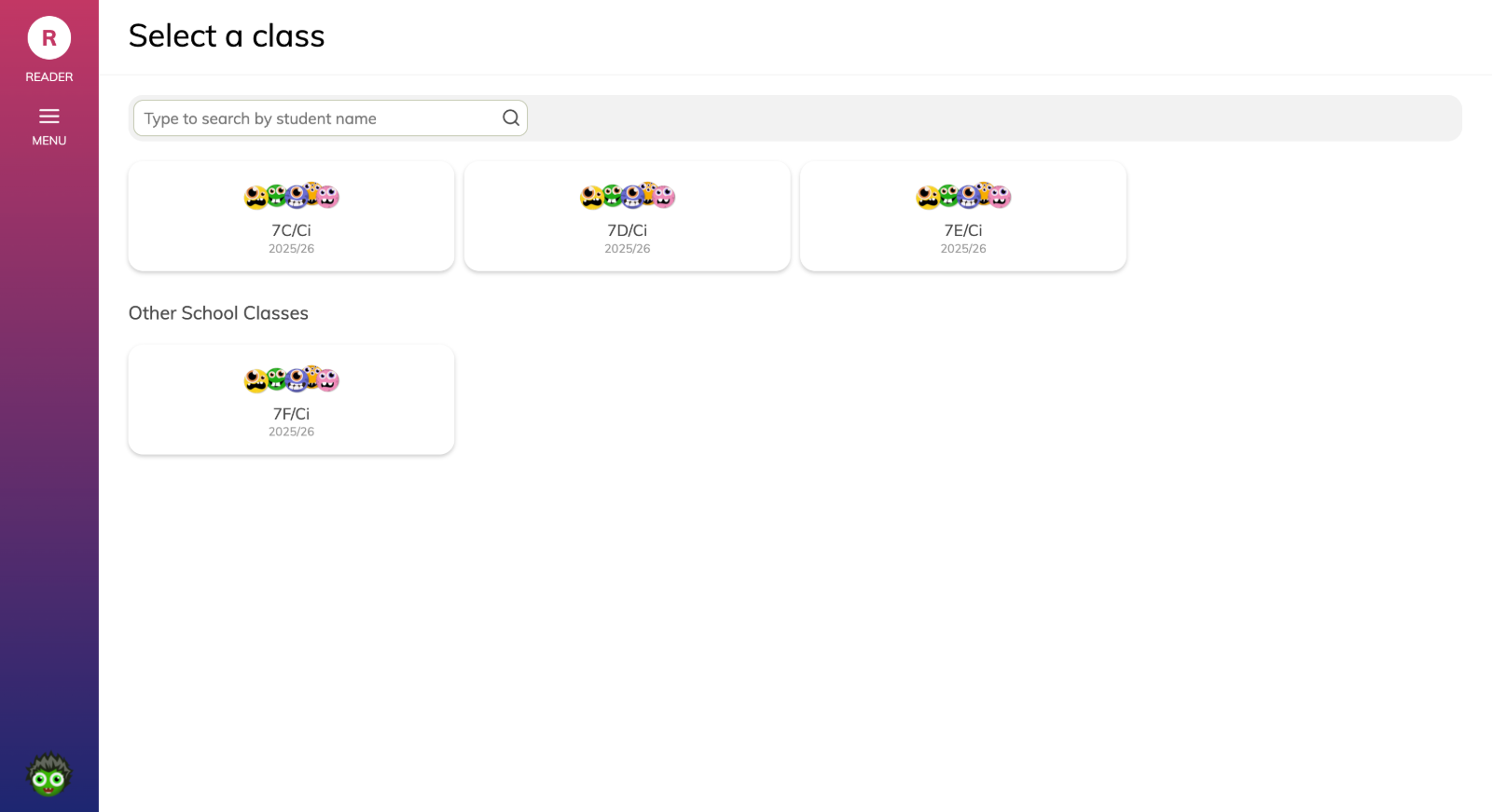
3. Find your class in Reader
In the Reader, use the Class cards or Search by pupil name (for example, search for Example Pupil) to open the class (for example, Example Class) you want to check.
-
4. Remember where changes must be made
Make any pupil, class or staff changes in your school's MIS only. Wonde synchronises those MIS changes to BoomReader; updates are normally synchronised overnight and will appear in the Reader after that.
-
5. If you expect a change that is not visible
Ask your MIS administrator to confirm the change was saved in the MIS, then wait for the next overnight synchronisation. Do not attempt to manually create, edit or remove MIS-managed pupils or staff in BoomReader.
-
6. If a change still hasn't appeared after the next sync
Report the issue to your school's MIS administrator or the person who manages your school's BoomReader account so they can check the MIS record and Wonde synchronisation status.
What happens next
Changes made in the MIS normally appear in BoomReader after the overnight Wonde synchronisation. The School Hub will not provide manual pupil-management controls for MIS-managed schools, so all updates must be handled via your MIS.
Something not working?
I can't see a pupil who should be in my class
Confirm the pupil is assigned to the class in your MIS, then wait for the next overnight synchronisation. You can also check other classes in Reader using Other School Classes or Search by pupil name.
A pupil has left but still appears in the class
Removal must be completed in the MIS. Ask your MIS administrator to remove the pupil in the MIS and allow the next overnight synchronisation to update BoomReader.
I see duplicate pupil records
Duplicates generally come from the MIS. Ask your MIS administrator to reconcile duplicate records in the MIS so the correct single record is synchronised to BoomReader.
Can I force an immediate synchronisation from BoomReader?
There is no verified in-app control described for forcing an immediate Wonde sync. Confirm changes in the MIS and wait for the next scheduled synchronisation or ask your MIS administrator to check Wonde's status.