
Adding or editing reading bands
Create and maintain an ordered set of school reading bands.
- 4 steps
- For teachers and staff
- Checked 8 November 2026
These steps work the same for every school, whether you use an MIS sync such as Wonde or manage classes yourself.
Follow the steps
-
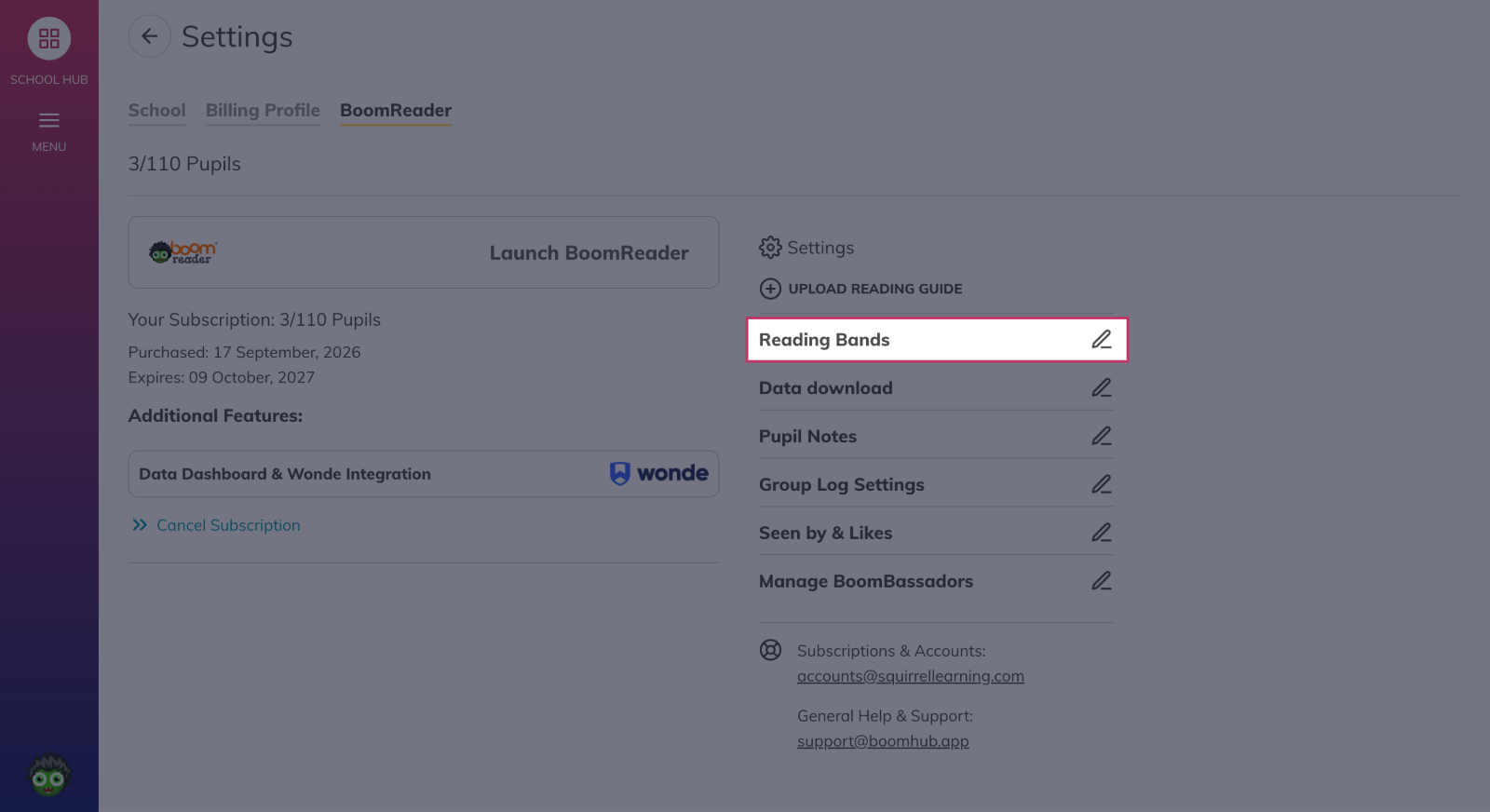
Open Reading Bands
Open the menu and choose Reading Bands.
-
Add a new band
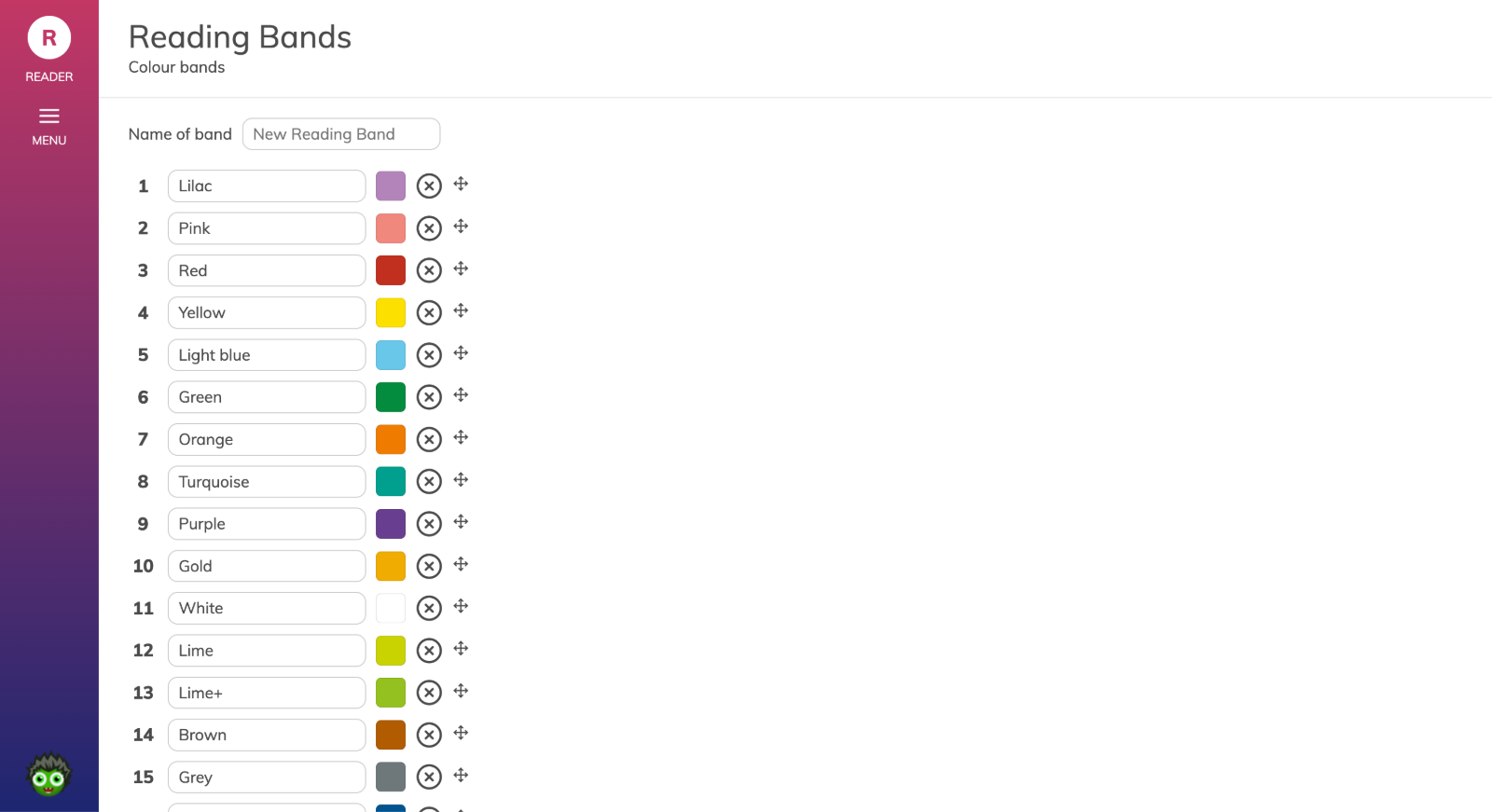
Choose New Reading Band, type its name, then choose Add.

-
Rename, reorder or remove bands
Change the names or the order of your school's bands, where your account allows it.
-
Save your changes
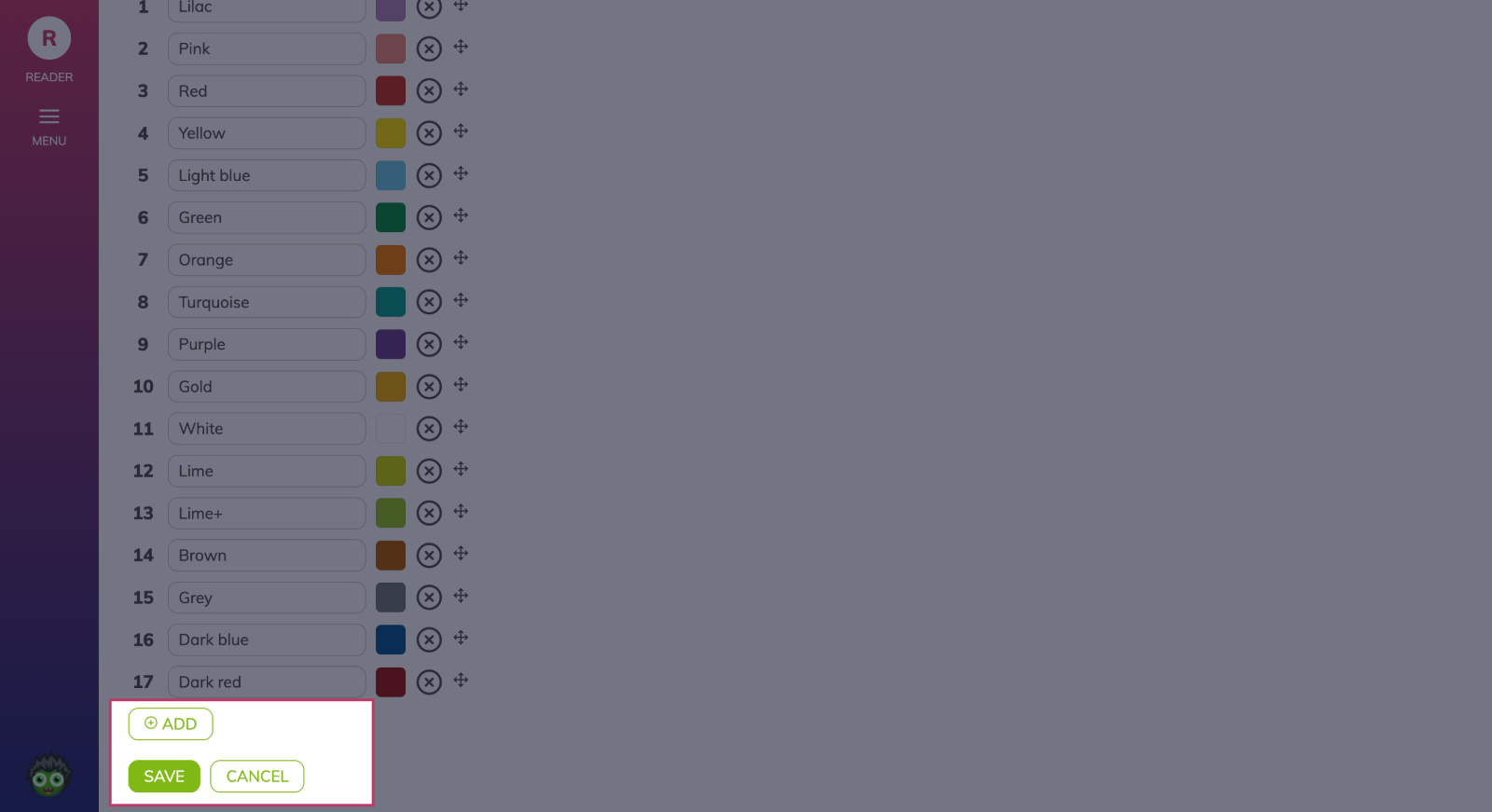
Choose Save. Choose Cancel to leave without saving.
- Tip
The usual order of bands is: Lilac, Pink, Red, Yellow, Light blue, Green, Orange, Turquoise, Purple, Gold, White, Lime, Lime+, Brown, Grey, Dark blue, Dark red.