
Accessing a writing project
This guide shows students how to access active writing projects on the Boom platform.
- 3 steps
- For pupils
- Checked 2 November 2026
Follow the steps
-
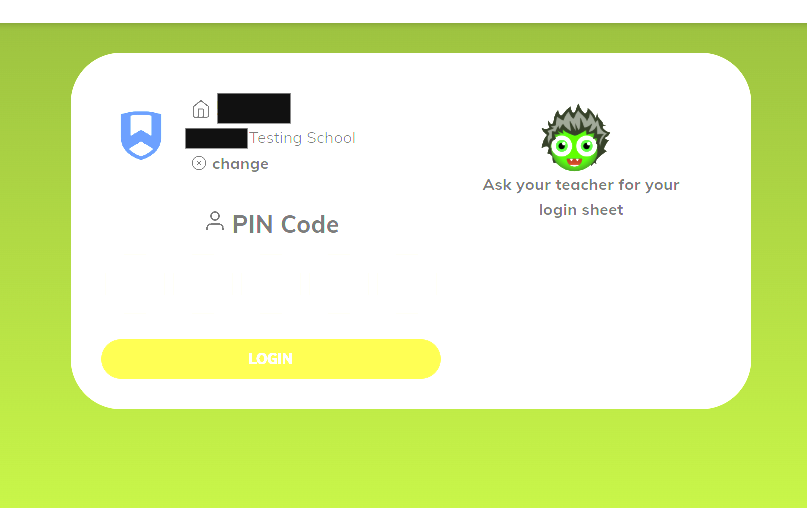
Log in to **School Hub**
Open School Hub, enter your school code and your individual student code, then follow the on‑screen prompts to access your account.
-
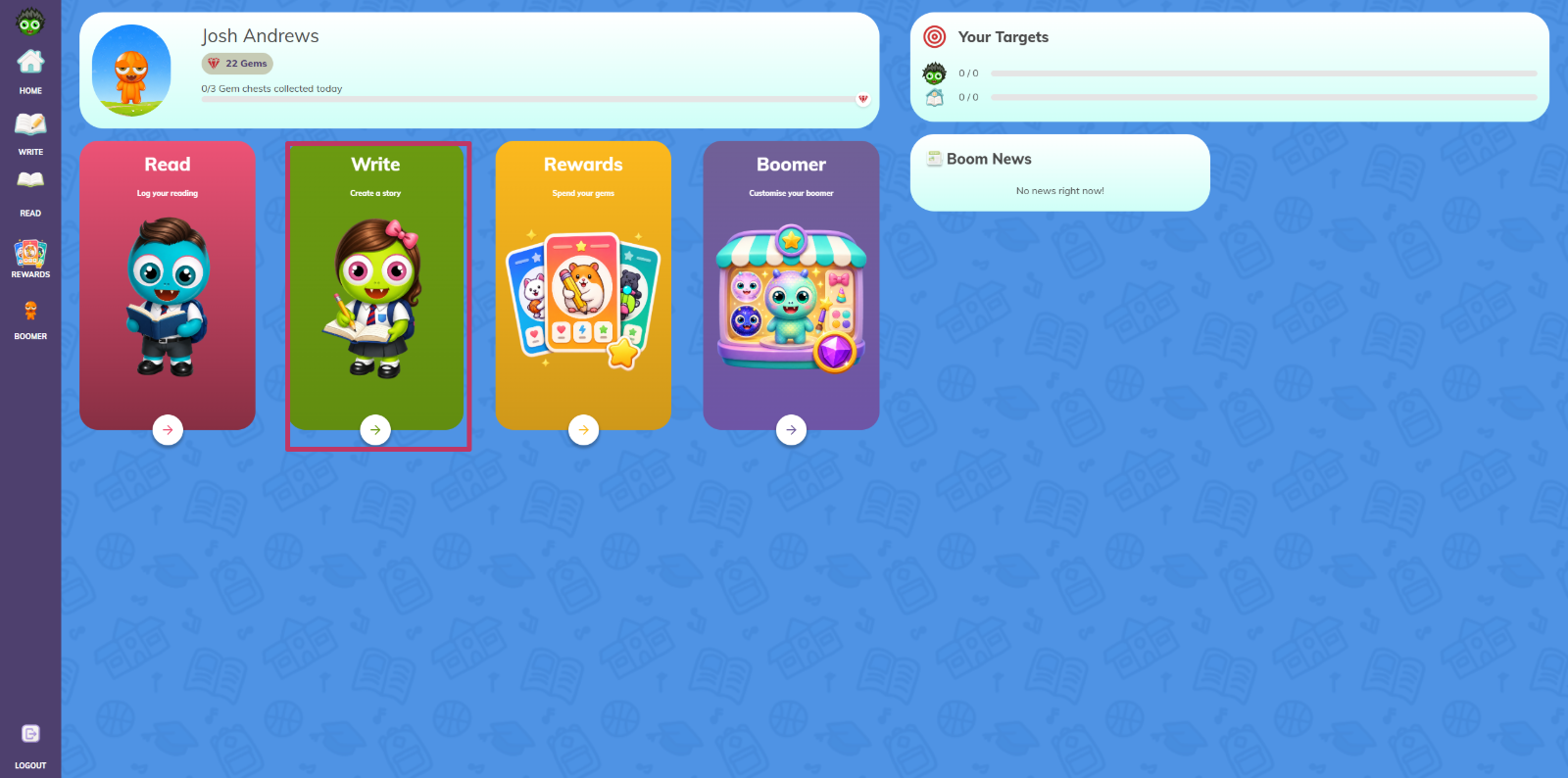
Select the **Writer** option.
Select the Writer option to open BoomWriter and view your writing projects.
-
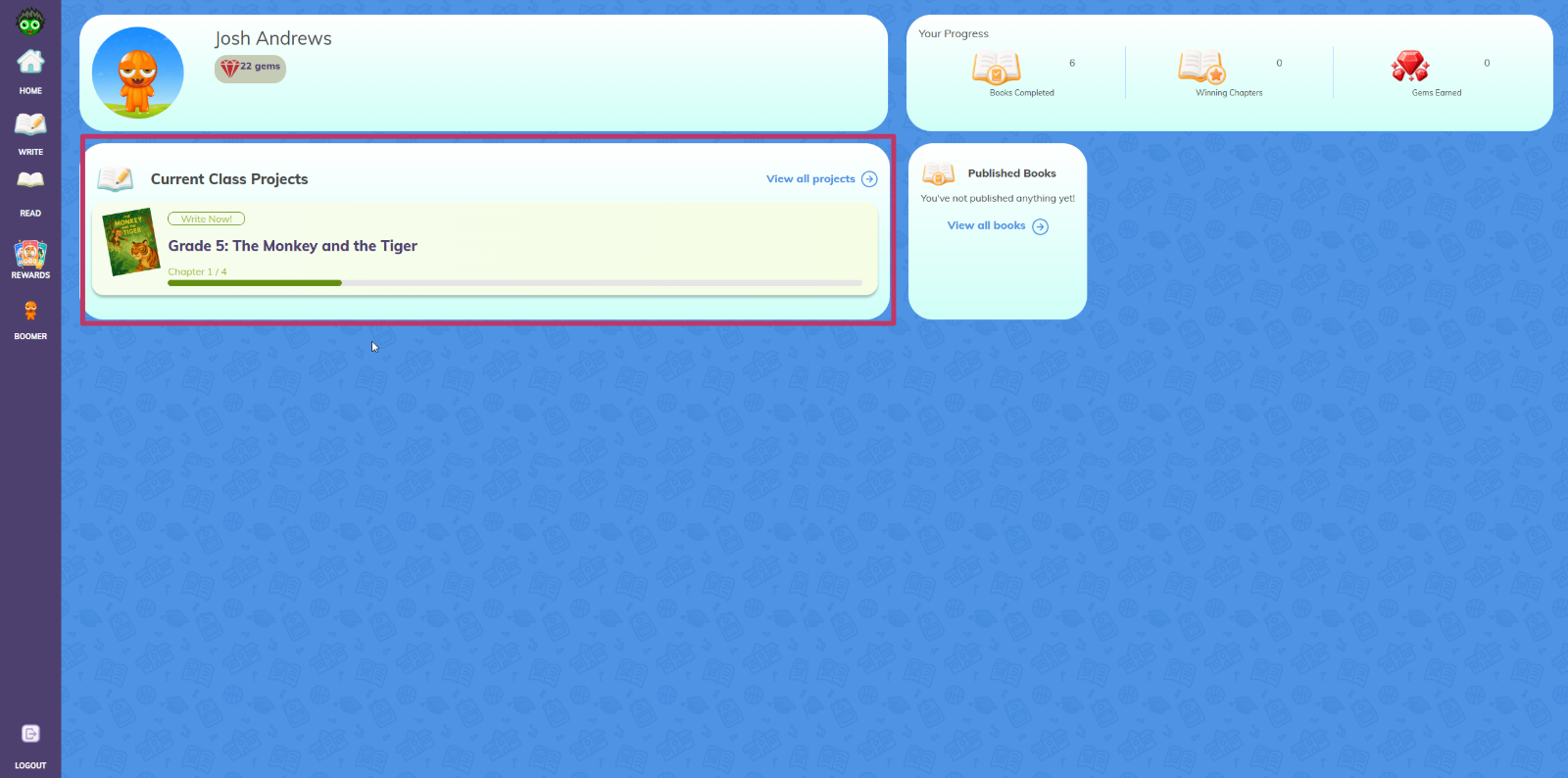
Select the active writing project.
From the list of Current Class Projects, tap the project you want to contribute to to open it.
Something not working?
Students can't see any current class projects.
If students cannot see any class projects, the teacher either hasn't assigned them yet or hasn't finished setting them up to allow student contributions.